
Automatic backup and restore
The Backup feature backs up information stored in the Commenters list, the app's settings, templates, and more.
By default, a backup is created on startup and on normal shutdown, and is shown in the list.
You can freely set the backup destination folder, so you can also create a cloud backup by pointing it to a folder in a cloud storage service such as Google Drive or OneDrive.
Backup files are also compatible with each other, so they're useful when moving to a different PC or transferring settings between multiple devices.
How to use
Open the Backup settings screen
Open the Backup settings screen (second image below) from "Backup" in the "..." menu at the top right of OneComme.
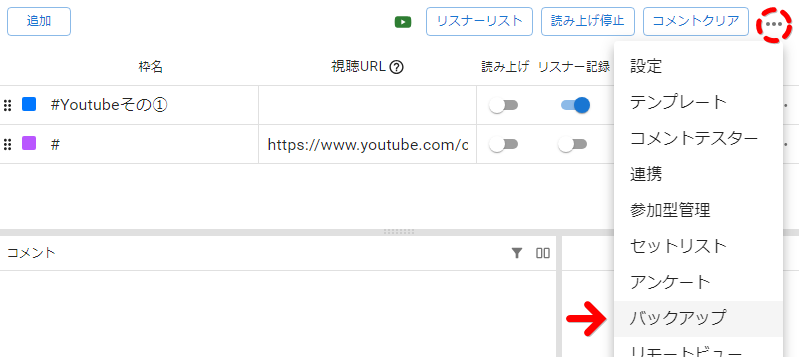 AddStream NameCommentsStream URLCommentersStop speechSpeechPersistClear commentsSettingsTemplatesDummy CommenterIntegrationViewer-participating SystemSetlistPollBackup
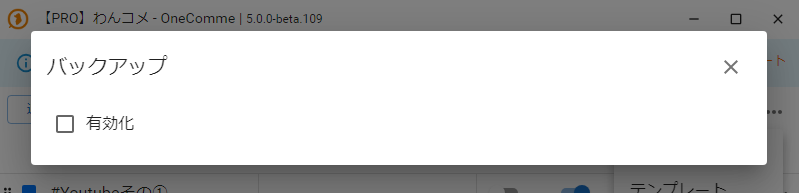 BackupEnabled
Enable automatic backup
Automatic backup is disabled by default.
First, check "Enable" in the image below to display the settings screen.
Next, use "Backup location" to specify the folder where backup files will be saved.
This makes the app automatically create a backup on startup and on shutdown.
Note
To enable automatic backup, checking the box alone isn't enough — you also need to specify a "Backup location".
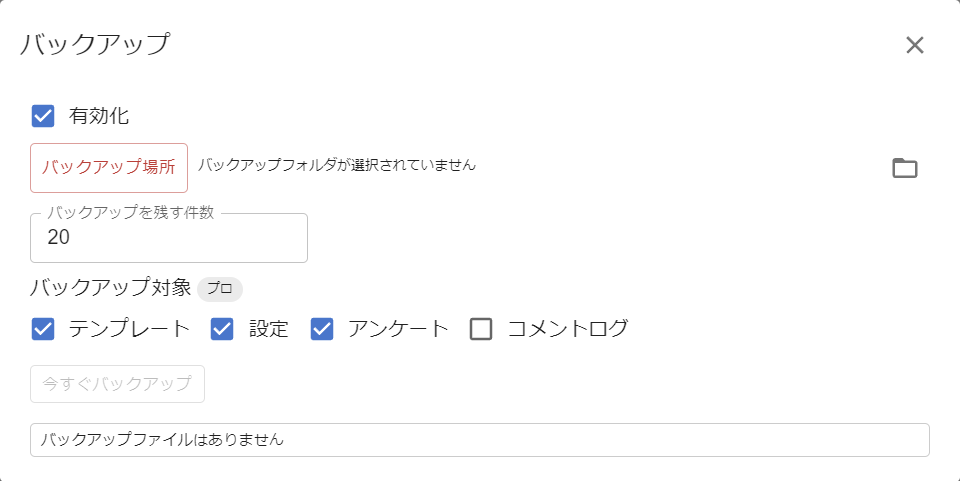 BackupEnabledBackup locationBackup folder is not set.Num. of backupsBackup Targets BloBackup nowNo backup exists.
If you want to create a backup right away
After specifying a location, quit the app or run "Backup now" to generate a backup file in the specified folder.
Targets for backup
Check the files you want to include in the backup.
| Templates | Covers all Templates. This includes WordParty settings. |
| Settings | Covers OneComme's settings. This does not include PRO license activation. |
| Poll | Covers poll voting results. Poll settings are not included. |
| Comment Log | Covers the Comment Log. If a large number of comments remain, backing up may take some time. |
| Plugins | Covers all Plugins. |
TIPS
Data for Commenters, Poll, and Setlist is always backed up.
How to restore
When backup files exist, a list like the one below is displayed.
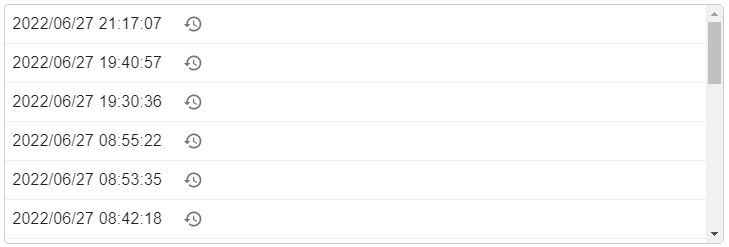
Clicking the clock icon shows a confirmation like the one below. Selecting "OK" restores your settings to that point in time.
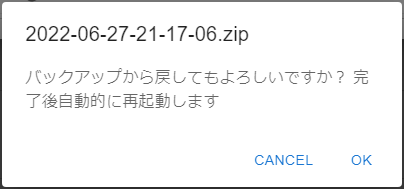 Restore from backup? Comp-leted, will restart automatically
When restoring, the selected backup file is first extracted and its contents verified.
If this verification finds a problem, such as a corrupted backup file, the restore is canceled without making any changes to your current data.
In that case, try a different backup file, or reach out on the forum.
Once verification passes, the current data is temporarily set aside, then replaced with the contents of the backup.
If this replacement process fails for any reason, the app automatically rolls back to the data it set aside, restoring the original state.
Note
Whether the restore succeeds, or fails and rolls back to the original state, the app automatically restarts once processing is complete.
No confirmation is shown before the restart, so please be aware of this in advance. (If the process is canceled at the extraction/verification stage, the app does not restart and you can continue working as normal.)
Tips
Before running a restore, create a backup file first using "Backup now".
Even if you revert to a past state, having a backup file lets you quickly return to the state you were in before the restore.
Specifying a cloud storage folder such as Google Drive, OneDrive, or Dropbox makes this even safer.
If you want to restore your settings right away, specify the folder containing the backup file after starting the app, then restore from that backup file.
Backup screen
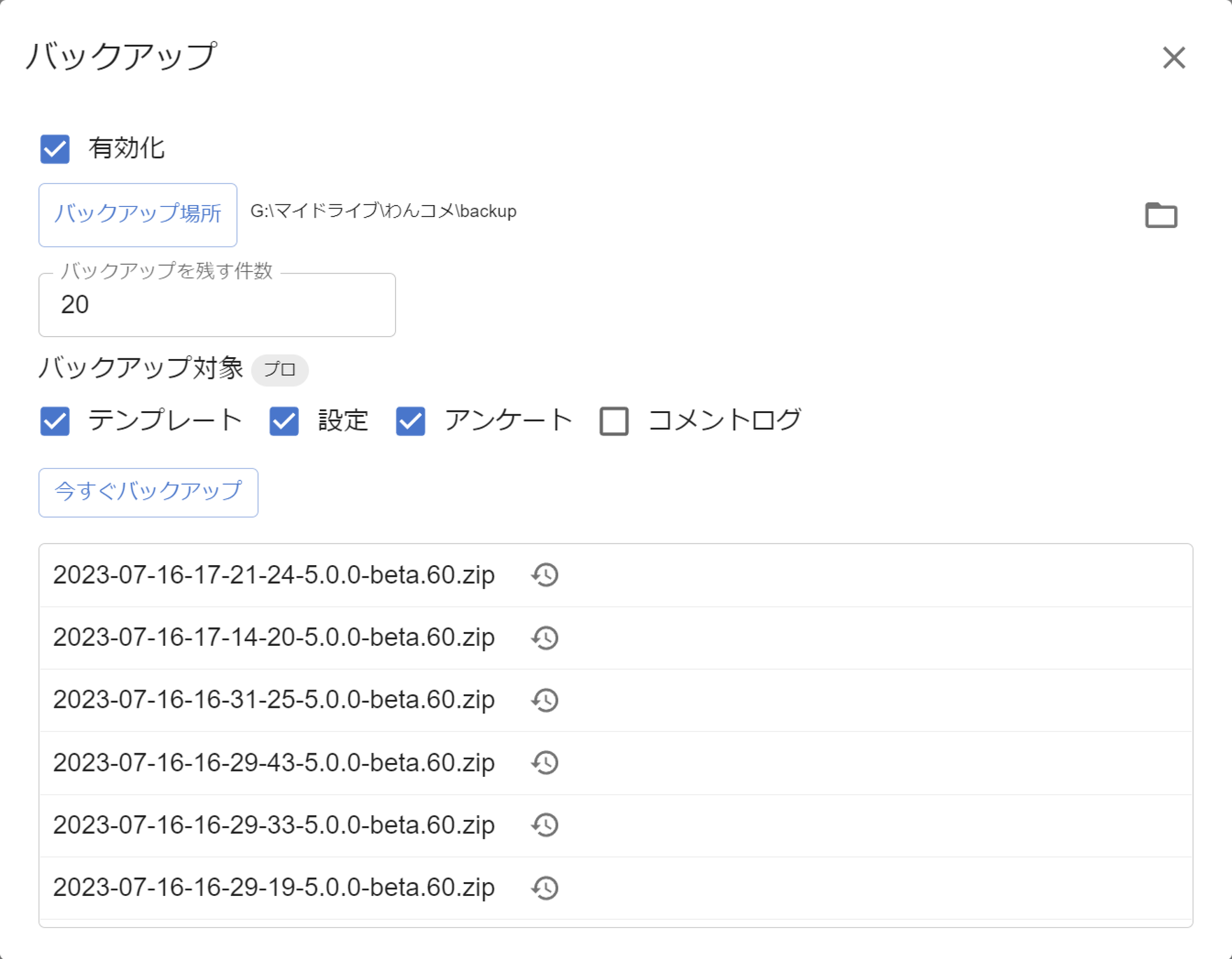 BackupBackup locationNum. of backupsTargets for backupPROBackup now
Backup screen field descriptions
| Enable | Enables automatic backup. (Note: specifying a backup location is required.) |
| Backup location | Specifies the folder where backup files are saved. |
| Number of backups to keep | Specifies how many backup files to keep, so files don't accumulate excessively. Once the limit is reached, the oldest files are deleted first. |
| Targets for backup | The "Targets for backup" selection can only be changed in the PRO edition. The following four items can be selected as backup targets: |
| - Templates | Covers all Templates. This includes WordParty settings. |
| - Settings | Covers OneComme's settings. This does not include PRO license activation. |
| - Poll | Covers poll voting results. Poll settings are not included. |
| - Plugins | Covers all Plugins. |
| - Comment Log | Covers the Comment Log. If a large number of comments remain, backing up may take some time. |
| Backup now | Creates a backup file on the spot, without waiting for the automatic backup. |
| (Backup file list) | Displays a list of backup files saved so far. |
| (Clock icon with a counterclockwise arrow) | Displayed to the right of each backup file. Clicking it starts a restore from that backup file. |