
Adding plugins
How to add plugins to OneComme
OneComme (5.2 and later) includes a plugin mechanism that runs on JavaScript (Node.js).
Installing a plugin
Open the Plugins window from the menu in the top right of OneComme > Plugins.
 Clear commentsSettingsTemplatesDummy CommenterIntegrationViewer-participating SystemSetlistPollBackupRemote ViewAnalyticsPluginsOpen folderNoticeSupportOthers
Click "Plugins' Folder" in the Plugins window.
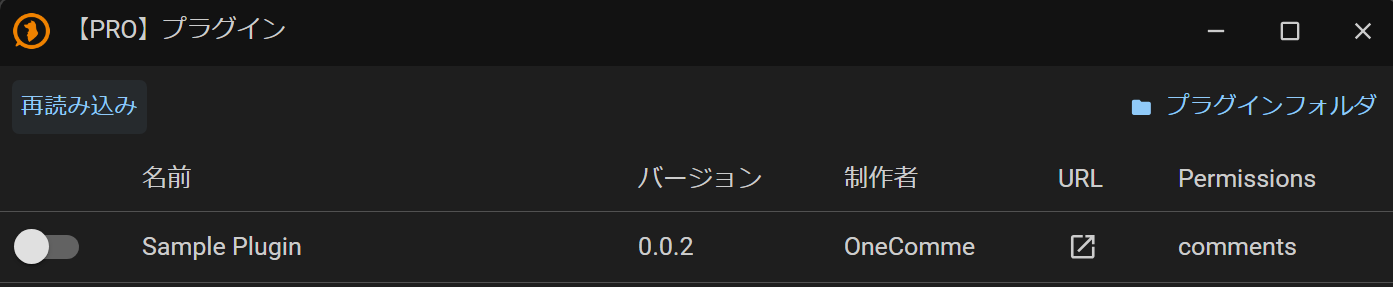 [PRO] PluginsRefreshNameVersionAuthorPlugins' Folder
Place the folder containing the plugin into the folder that opens.
(Make sure plugin.js is located under plugins/plugin-folder-name/, for example C:\Users\{YOUR_ID}\AppData\Roaming\onecomme\plugins\sample\plugin.js.)
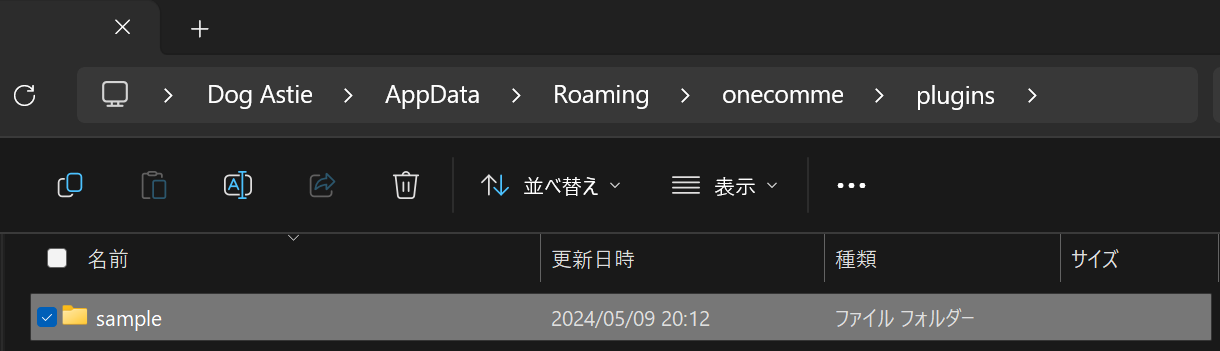 NameShuffle and SortLast UpdateTypeFile FolderSize
Once placed, run "Import" in the Plugins window.
If this completes successfully, the installed plugin will appear in the plugin list.
 NameVersionAuthor
| ① Enable | Turns the plugin on or off |
| ② Name | The plugin's name |
| ③ Version | The plugin's version |
| ④ Author | The plugin developer's name |
| ⑤ URL | Shown if the plugin has a URL configured Clicking it opens the page specified by the plugin |
| ⑥ Permissions | The data types the plugin uses Be careful of plugins that request more than they need |