
[PRO] Poll
You can run polls using comments.
Note
This feature requires the PRO version
Types of poll
Choices
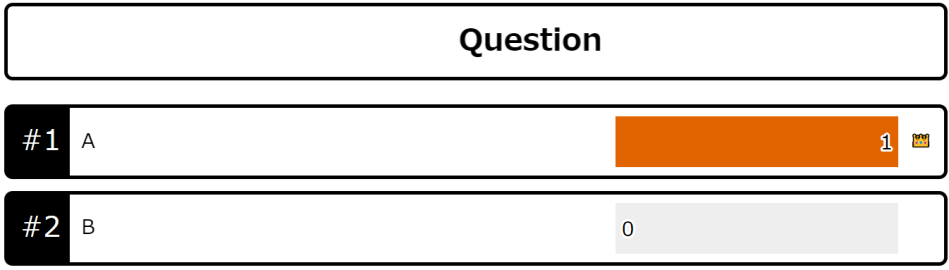
A question format with predetermined choices.
Viewers can choose either single-vote or multiple-vote mode.
Commenting #1 (a # followed by a number) casts a vote.
Free description
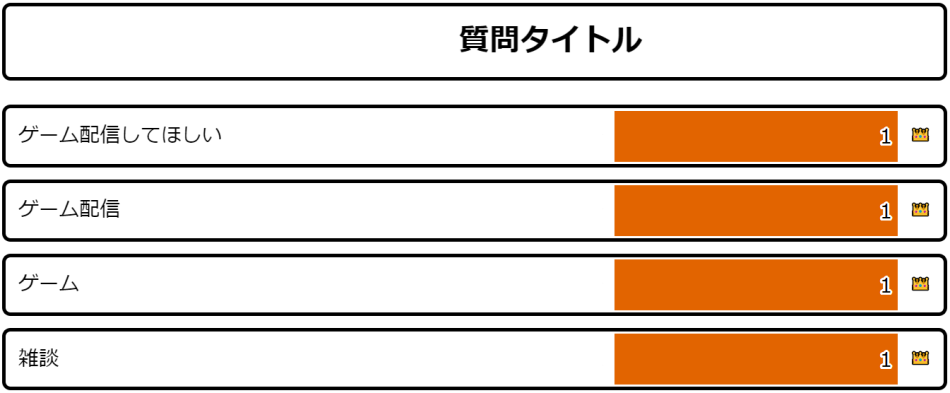
A question format where choices are added freely through comments.
Commenting #New choice (a # followed by a choice) adds a new choice.
If #New choice is commented again, it counts as a second vote.
You can also merge choices with inconsistent wording in the results screen.
 Title of pollPlease stream gamesGame StreamGamesChat
Quiz mode
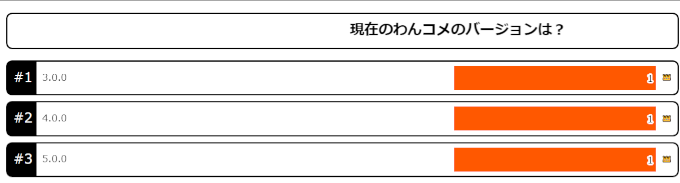
A quiz format with predetermined choices.
Each viewer can choose once.
Commenting #1 (a # followed by a number) casts a vote.
Unlike a poll, answers are automatically tallied and a ranking is generated.
 The current OneComme version is
Creating a poll or quiz
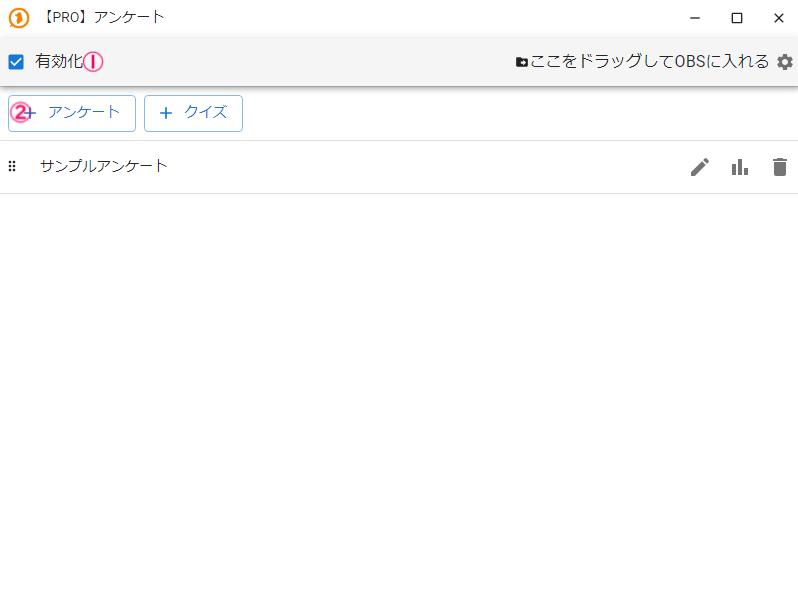
Click Poll from the menu at the top right to open the poll window shown below.
 PRO] PollEnabledPoll
Check Enable at ① and click the + button for a poll or quiz.
A poll or quiz will be created.
Poll screen
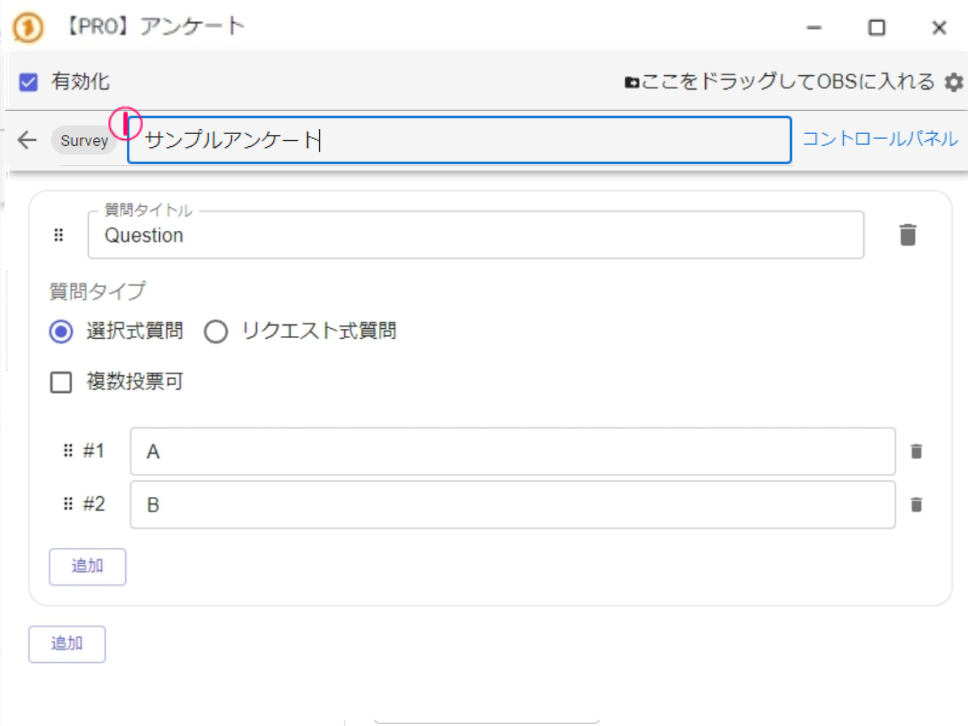 Sample pollOperate this poll
Quiz screen
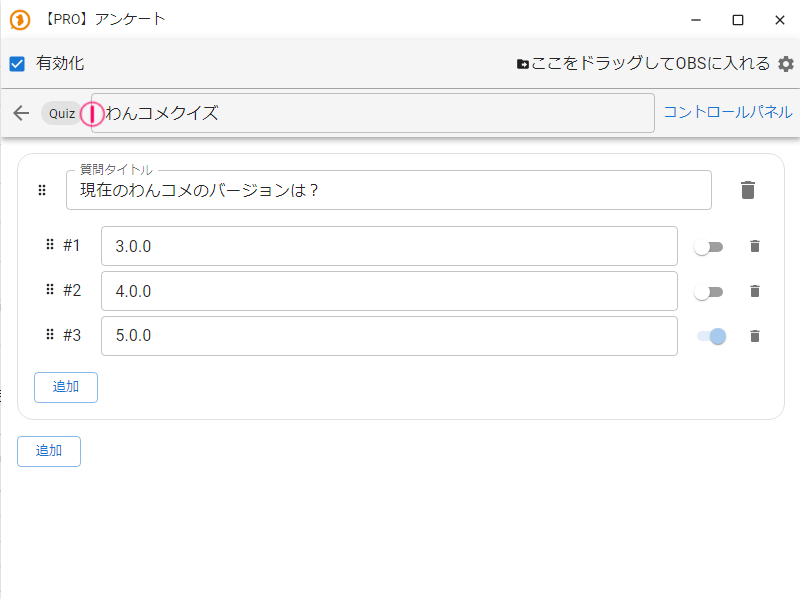 PRO] PollEnabledTitle of pollThe current OneComme version isAddAddDrag and Drop this into OBS sceneOperate this poll
① Rename the poll or quiz to something easy to identify.
Creating a choices question
A choices question is a question format where viewers vote for one of the choices you prepared in advance.
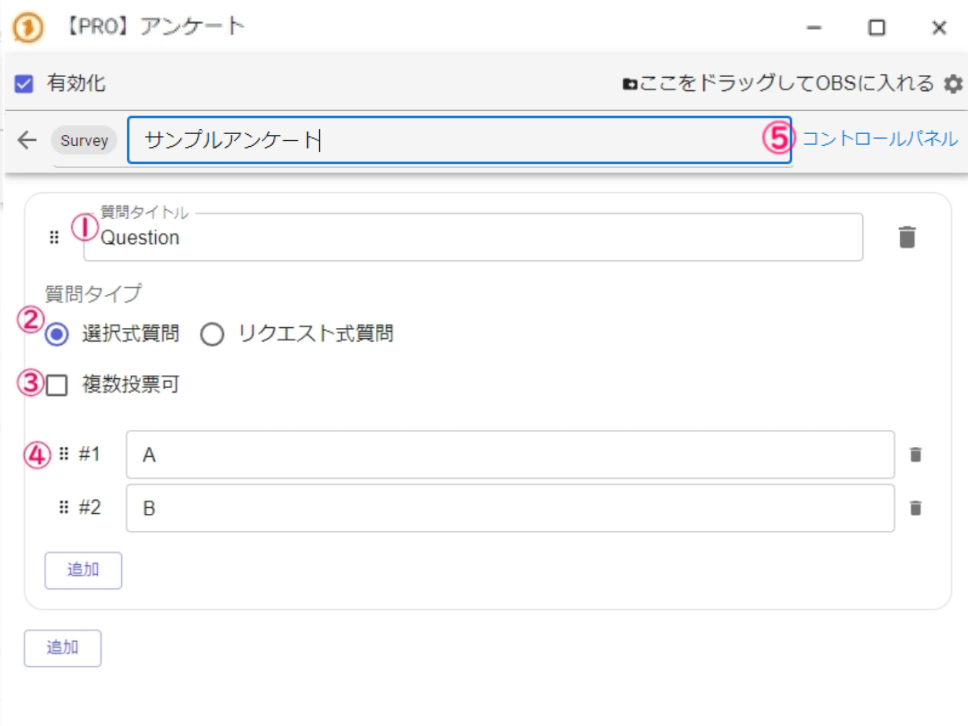 Sample pollTitle of pollOperate this poll
① Enter the question title. This is also shown on screen.
② Select Choices as the question type.
③ Decide whether each viewer gets a single vote or can vote multiple times.
④ Enter the choices. Choices are automatically numbered #1, #2, and so on, and viewers vote by commenting the number. Add choices as needed to complete the list.
⑤ Once finished, click Control this poll → see the Control this poll section.
Creating a free description question
A free description question is a question format where choices are created from viewers' comments.
Commenting with a # at the start, like #Choice, automatically adds it as a choice.
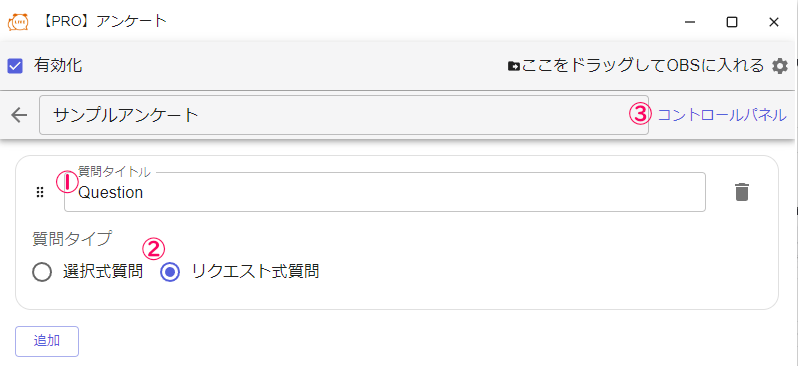 Sample pollTitle of pollTypesAddDrag and Drop this into OBS sceneOperate this poll
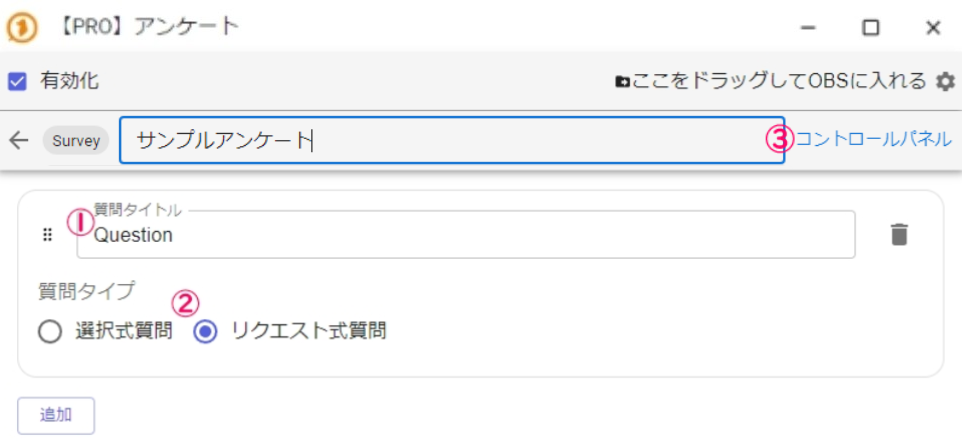 Sample pollDrag and Drop this into OBS sceneOperate this poll
① Enter the question title.
② Change the question type to Free description.
③ Once finished, click Control this poll → see the Control this poll section.
Quiz mode
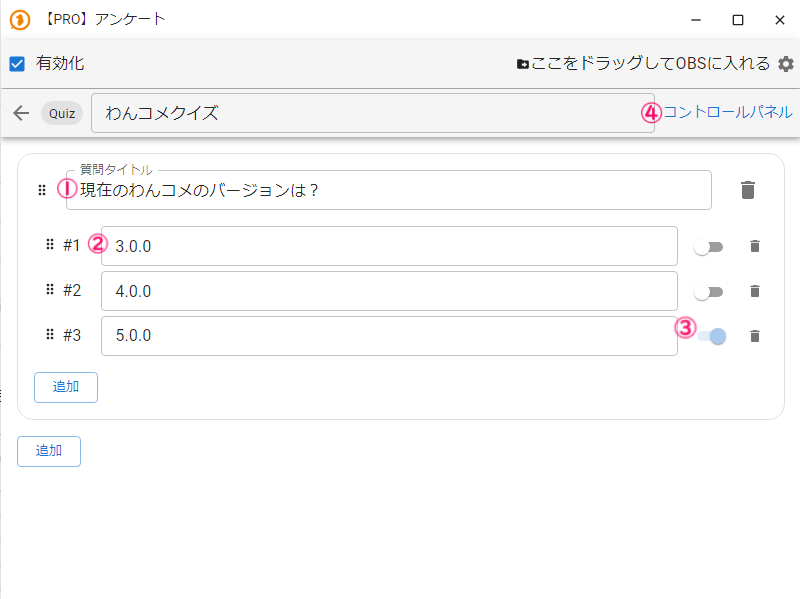 PRO] PollOneComme QuizTitle of pollAddAddDrag and Drop this into OBS sceneOperate this poll
Quiz mode is a quiz format where viewers answer using choices you prepared in advance.
① Enter the question title. This is also shown on screen.
② Enter the choices. Choices are automatically numbered #1, #2, and so on, and viewers vote by commenting the number. Add choices as needed to complete the list.
③ Select the correct answer.
④ Once finished, click Control this poll → see the Control this poll section.
Control this poll
Accepting answers (poll)
To start accepting answers for a poll, click the Start button at ①.
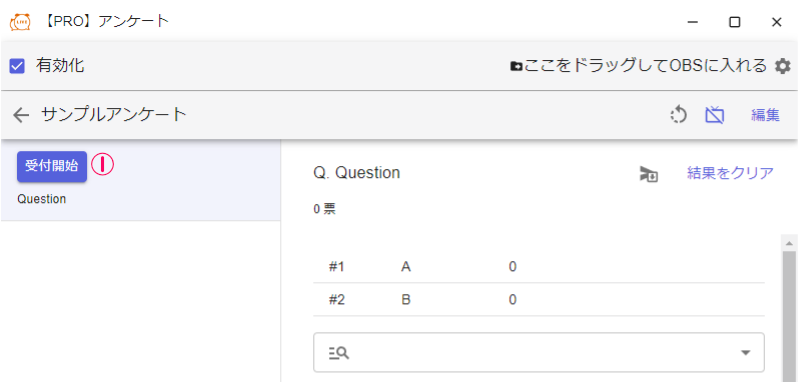 PRO] PollEnabledSample pollDrag and Drop this into OBS sceneClear result
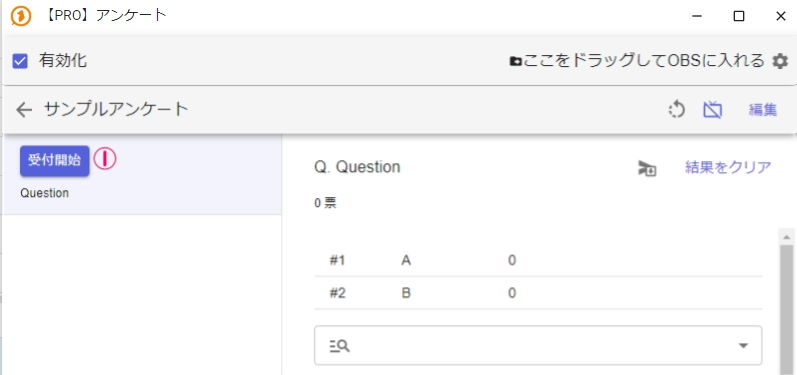 PRO] PollDrag and Drop this into OBS sceneClear result
While answers are being accepted, commenting #1 votes for choice #1 as shown below, and viewer names are listed in voting order along with their chosen choice.
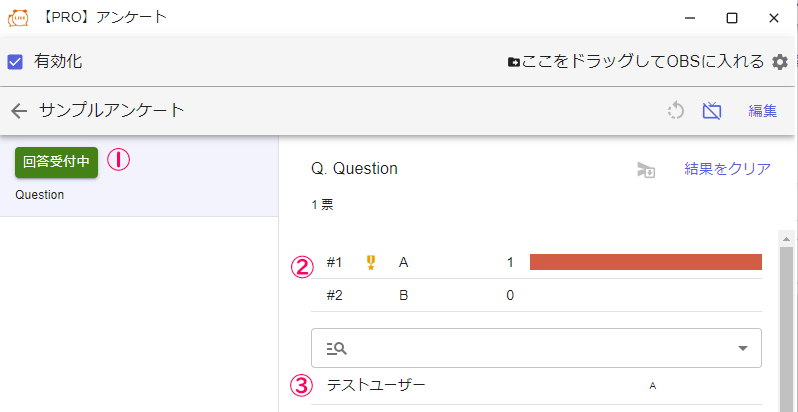 PRO] PollEnabledSample pollAcceptingDrag and Drop this into OBS sceneEditClear resultTestUser
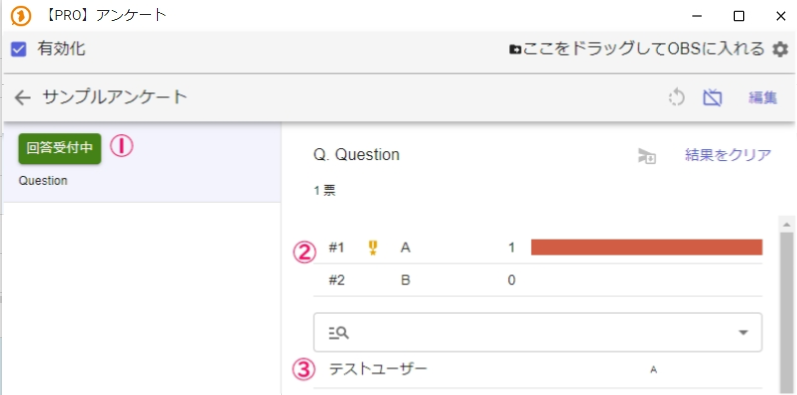 PRO] PollSample pollClear resultTestUser
Accepting answers (quiz)
To start accepting answers for a quiz, click the Start button at ①.
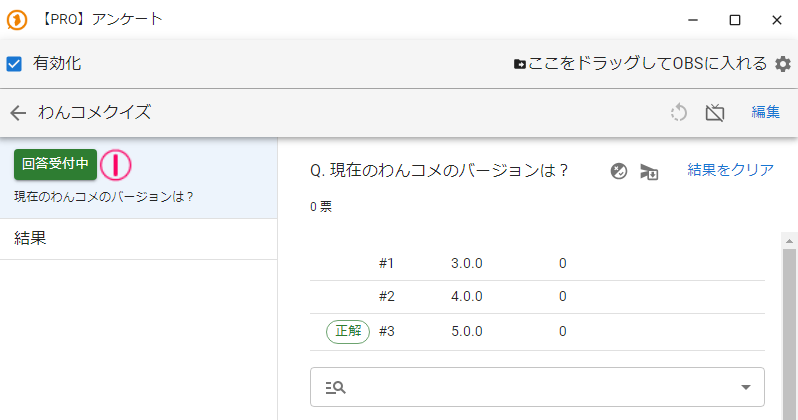 PRO] PollOneComme QuizAcceptingThe current OneComme version isResultEditQ. The current OneComme version isClear result
While answers are being accepted, commenting #1 votes for choice #1 as shown below, and viewer names are listed in answering order along with their chosen answer.
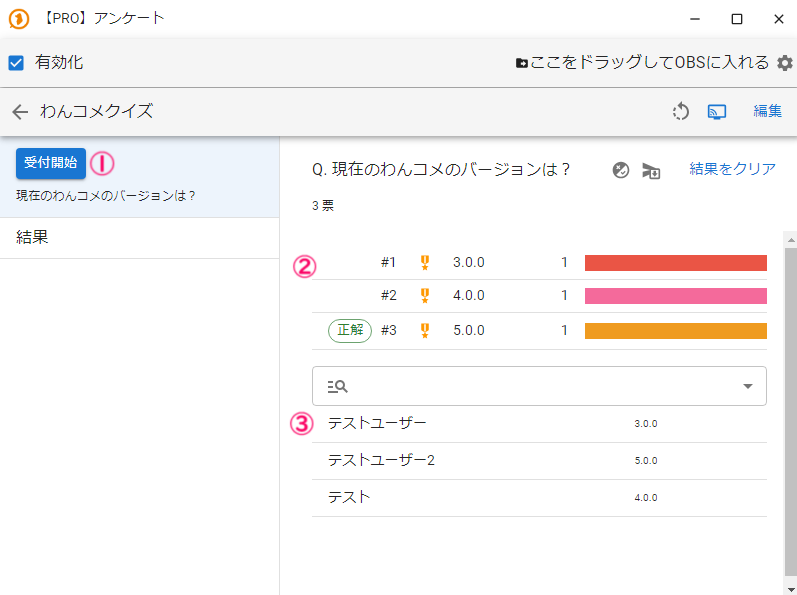 PRO] PollOneComme QuizStart acceptingThe current OneComme version isResultEditQ. The current OneComme version isClear resultTestUserTestUserTest
Showing the poll in your streaming software
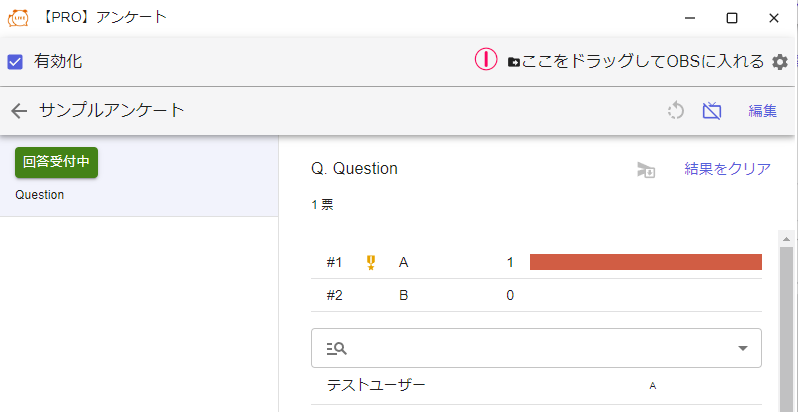 PRO] PollEnabledSample pollAcceptingEditClear resultTestUser
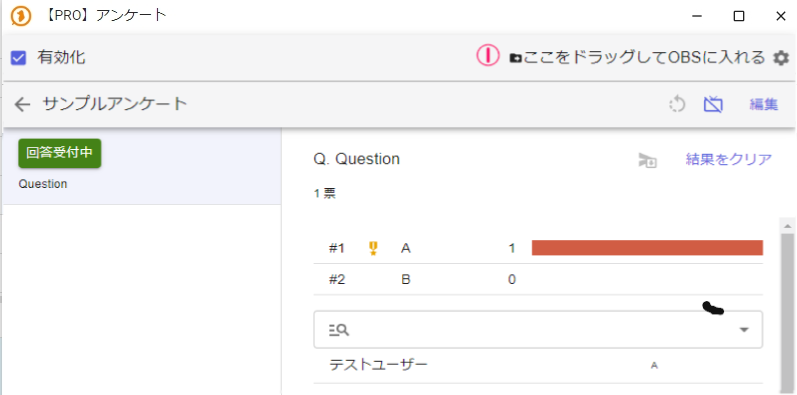 PRO] PollSample pollClear resultTestUser
Drag ① at the top right and drop it into OBS or other streaming software.
When the poll is not accepting answers, a template like the one below is shown.
Adjust the size in your streaming software as needed.

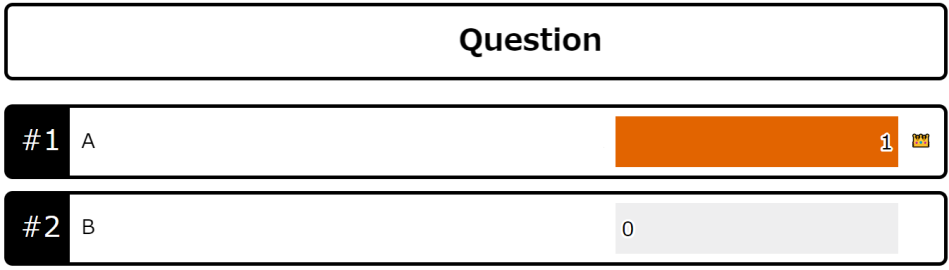
While answers are being accepted, the question title, choices, and voting status are shown as below (the example shows a choices question).
Merging inconsistent wording in free description questions
With free description questions, similar answers with inconsistent wording can occur.
There is a feature to merge these inconsistent choices and re-tally the results.
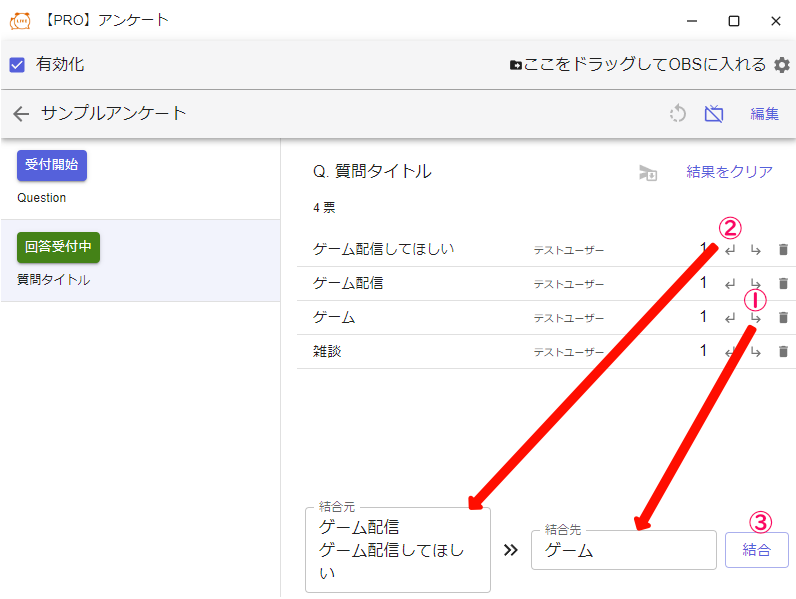
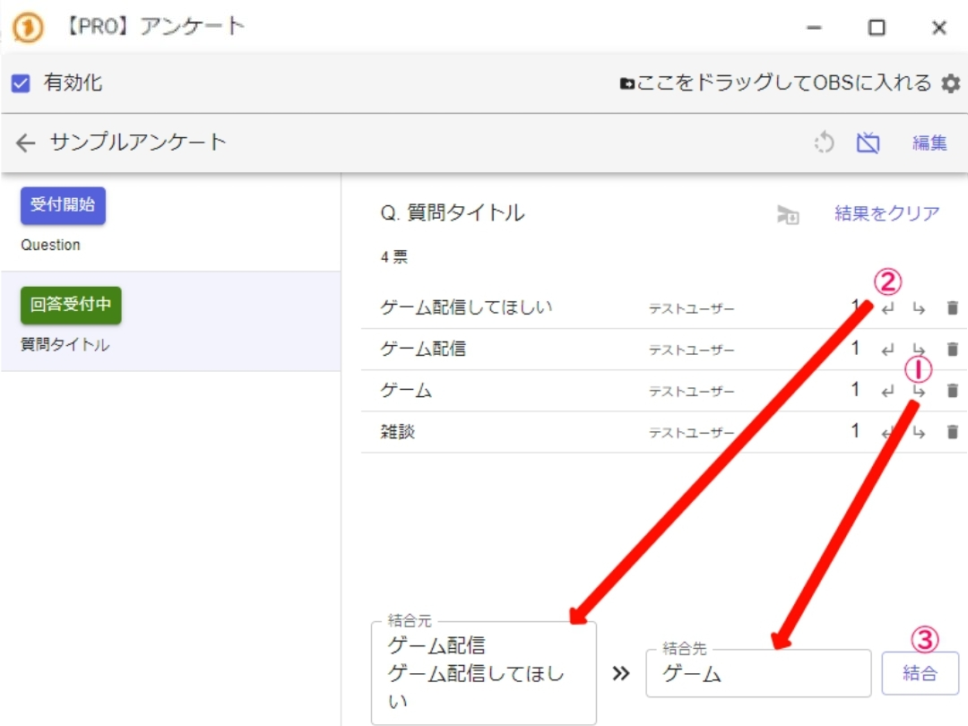
In the example below, there are three similar choices related to "game streaming".
 PRO] PollEnabledSample pollStart acceptingAcceptingTitle of pollEditPlease stream gamesGame StreamGamesChatClear resultTestUserTestUserTestUserTestUserMerge fromWant a game streamMerge toGamesMerge
 Sample pollGamesTestUserTestUserTestUserTestUserGames
① Select the choice you want to merge everything into as the merge target.
② Add the inconsistently worded choices as merge sources (you can add multiple).
③ Click the merge button.
As shown below, the votes can now be combined into a single "Game" choice.
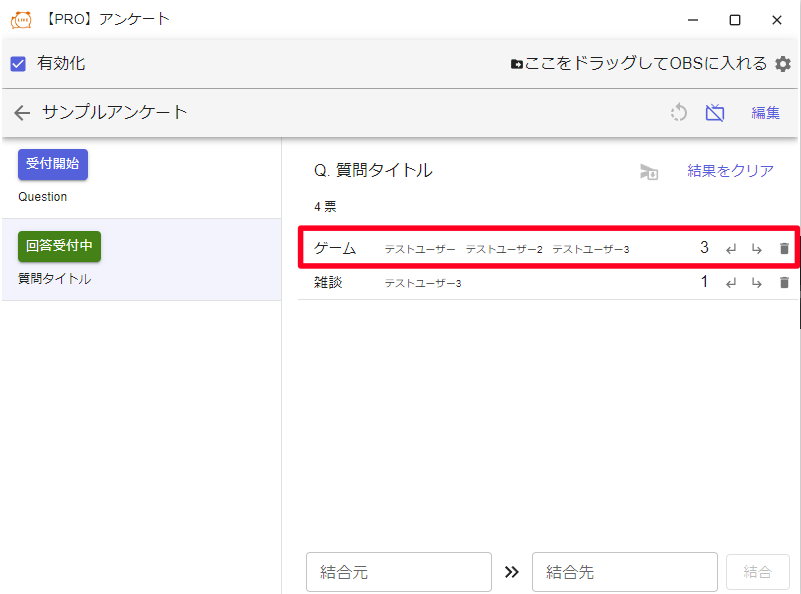 PRO] PollSample pollStart acceptingAcceptingTitle of pollDrag and Drop this into OBS sceneEditQ. Question titleGame TestUser TestUser2 TestUser3TestUserClear resultMerge fromMerge toMerge
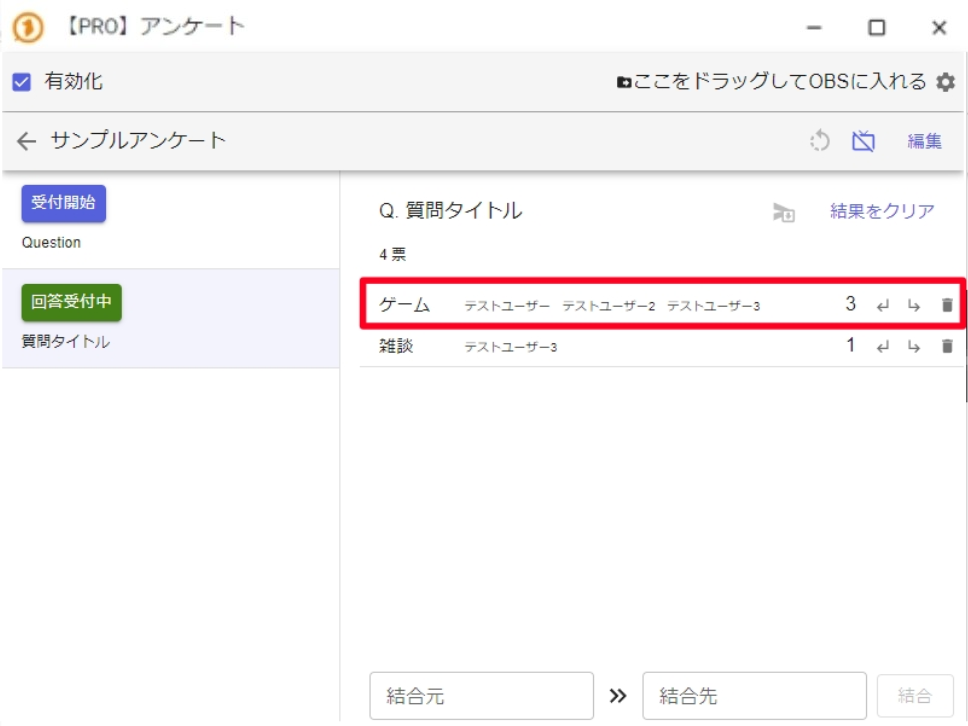 Sample pollGamesClear resultTestUser TestUser2 TestUser3TestUser
Votes from the same user always count as one vote, so no matter how many choices from the same user are merged, it is still counted as a single vote.