
On-screen effects triggered by comments - WordParty
How to use WordParty, a template that shows on-screen effects triggered by words in comments
Types of effects
Cracker
Launches objects from the left and right like a party cracker
Drop
Displays objects with physics simulation
Fixed coordinates
Displays images or videos at a fixed position
Confetti [PRO only]
Throwing [PRO only]
Ambient [PRO only]
A particle-based effect that keeps moving continuously in the very back of the screen
21 patterns are available in total. Movement has a two-layer structure that combines parameters with six basic motions: "Parallel flow", "Radial flow", "Pulse", "Arc", "Circular motion", and "Wander"
Shapes are drawn with code — circle, droplet, paper, star, heart, musical note, bubble, and line — and you can also specify an emoji or image as the motif
Key parameters include "Blur" to soften the outline, the "Colorful" toggle to make paper colors random and multi-colored, and "Fix angle" (off by default), which locks orientation for emoji/image motifs only
You can check the available motions in a gallery list that opens in a separate window
Connector [PRO only]
The Connector has no effect of its own — it's a feature for connecting predefined effects
You can combine multiple effects, such as running them in a lottery, in parallel, or with a delay
Trigger [PRO only]
The Trigger has no effect of its own — it's a feature that runs another effect when a special condition is met
For example, it can run a predefined effect such as Cracker or Drop once the Like count reaches a certain value
You can also run a Connector, and further combine it with a lottery or chain it to other effects
How to use
Open "Templates" from the "..." menu in the top right of OneComme
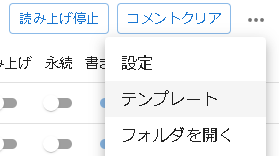 Stop speechClear commentsSettingsTemplatesOpen folder
Find the "word-party-xxxx" template and click the pen icon
 Drag and Drop this into OBS scene
The editor opens, where you can set up the effects you want to trigger and the words that trigger them
Understanding the editing screen (WordParty editor)
For details on the editor screen, see "Understanding and configuring the WordParty editor"
About saving
Everything is saved automatically, so there's no need to press a save button
(If you might want to revert your changes, copy the template folder to back it up)
Once you've finished configuring it, close the window and add it to OBS just like a regular template
TIPS
If you're setting the blending method for the browser source in OBS, we recommend turning "sRGB" off
How to check your changes
Edits made in the editor are reflected immediately
Just as with checking comment display, use the Dummy Commenter to confirm the effects behave as intended
Notes on using images and videos
Resize images and videos to the size you intend to use beforehand whenever possible
Note
Files larger than 1MB may not display properly, and depending on the number of files, other issues may occur
How to include the audio in your stream
To include sound played by WordParty in your broadcast, open the properties of the browser source you placed in OBS and check "Control audio via OBS" to capture the audio
(The exact wording may differ slightly depending on your OS and version)
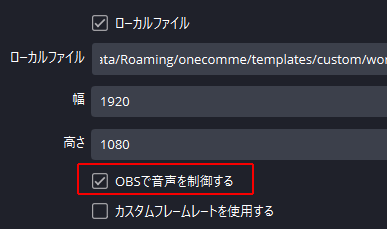 Local FileHeightUse custom frame rate
To monitor the sound as well, set Audio Monitoring to "Monitor and Output" in the Audio Mixer
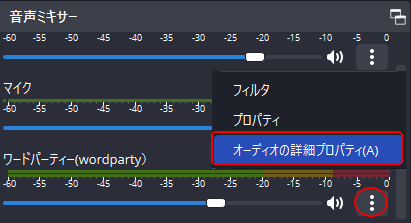 Audio MixerMicFilterPropertiesAdvanced Audio Properties (A
 WordPartyActiveMonitor and OutputMonitor OffMonitor Only (Output mutedMonitor and Output
Audio will be output from the monitoring device specified in your OBS settings
Supported formats
| Cracker effect | gif (static) / jpg / png |
| Drop effect | gif (static) / jpg / png |
| Fixed coordinates | gif (static/animated) / jpg / png / webm (supports transparency) / mp3 / wav |
| Confetti | gif (static) / jpg / png |
| Throwing | gif (static) / jpg / png |
| Sound effects | mp3 / wav |
Other notes
- Opening a version 2 WordParty settings file will cause an error
- word-party can be used as-is without duplicating it (only the config won't be overwritten by updates, etc.)
- Any template whose name starts with "word-party" will show the pen icon (to open the editor)
 Drag and Drop this into OBS scene