
WordParty PonKit
A soundboard-style tool that lets streamers trigger WordParty effects whenever they like
Important
Development of the WordParty Controller has ended
WordParty PonKit is now available as its replacement
The WordParty PonKit is a tool that triggers WordParty effects from your browser
*Note: WordParty must be set up beforehand
How to use
Access the following URL
https://onecomme.com/tools/wordparty-ponkit
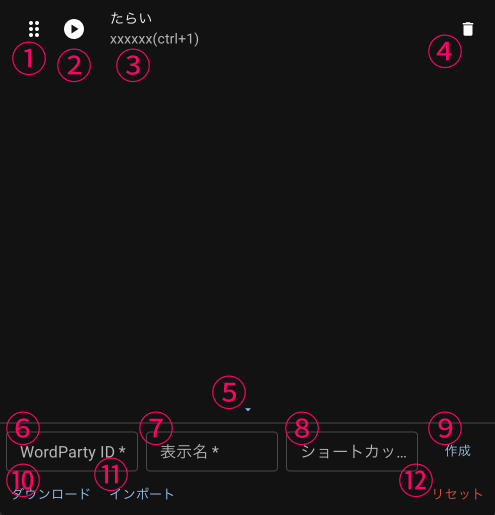 WashtubImportCreateReset
The settings and control screen opens. Enter the ID of the WordParty effect you want to run in ⑥
The WordParty ID is the 8-character alphanumeric string shown at the top of the effect editing screen in the WordParty editor
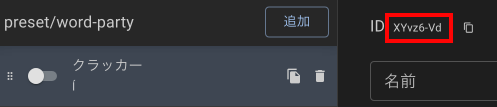 CrackerAddName
Next, give it a name that's easy for you to recognize in the display name field ⑦
The shortcut in ⑧ is optional
With the field selected, enter the shortcut key you want to register
Caution
Shortcut keys only work while this page has focus
They will not work when the page is in the background or during gameplay, so keep this in mind
Once configured, click Create in ⑨ to register it
Clicking the play button in ② runs the effect for the registered ID
TIPS
If the effect doesn't run, check whether OneComme is running, whether the WordParty ID is correct, whether the WordParty template is correctly placed in OBS, whether it works correctly without using the PonKit, and whether OneComme is up to date
Screen overview
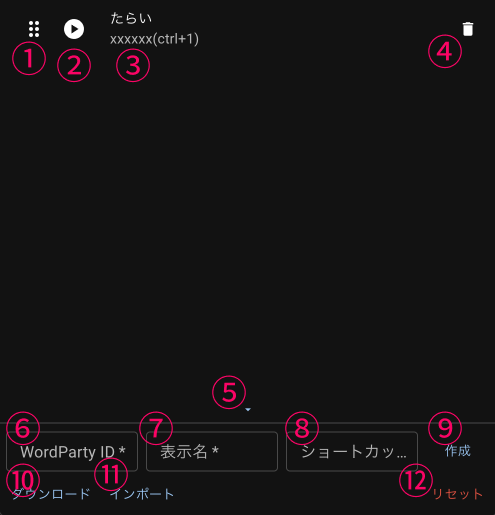 WashtubImportCreateReset
| ① Reorder button | Drag this to change the order |
| ② Play button | Runs the effect for the configured WordParty ID |
| ③ Configuration | Shows the display name and WordParty ID If a shortcut is configured, it appears in (shortcut key) |
| ④ Delete | Deletes this configuration |
| ⑤ Collapse | Collapses and hides the edit panel below |
| ⑥ WordParty ID | Enter the ID of the WordParty effect you want to add |
| ⑦ Display name | Enter a name for the effect you're adding |
| ⑧ Shortcut key | Sets the shortcut key that runs the effect While the field is selected, enter the key you want to use and it will register automatically |
| ⑨ Create | Registers the settings entered in ⑥⑦⑧ |
| ⑩ Download | Exports the registered settings as a file Importing this file via ⑪ restores the settings |
| ⑪ Import | Restores settings by referencing the file downloaded in ⑩ |
| ⑫ Reset | Deletes all registered settings |
Handy tips
The PonKit is convenient to set up as an OBS custom dock
Launch OBS, then open Menu > Docks > Custom Browser Docks
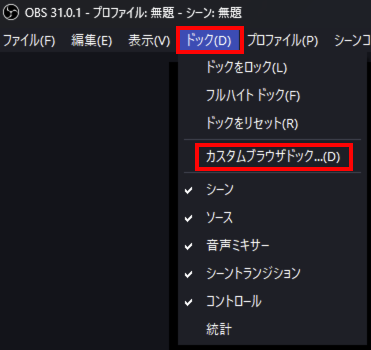 SceneSourceControl
Enter a dock name and enter the PonKit's page URL in the URL field
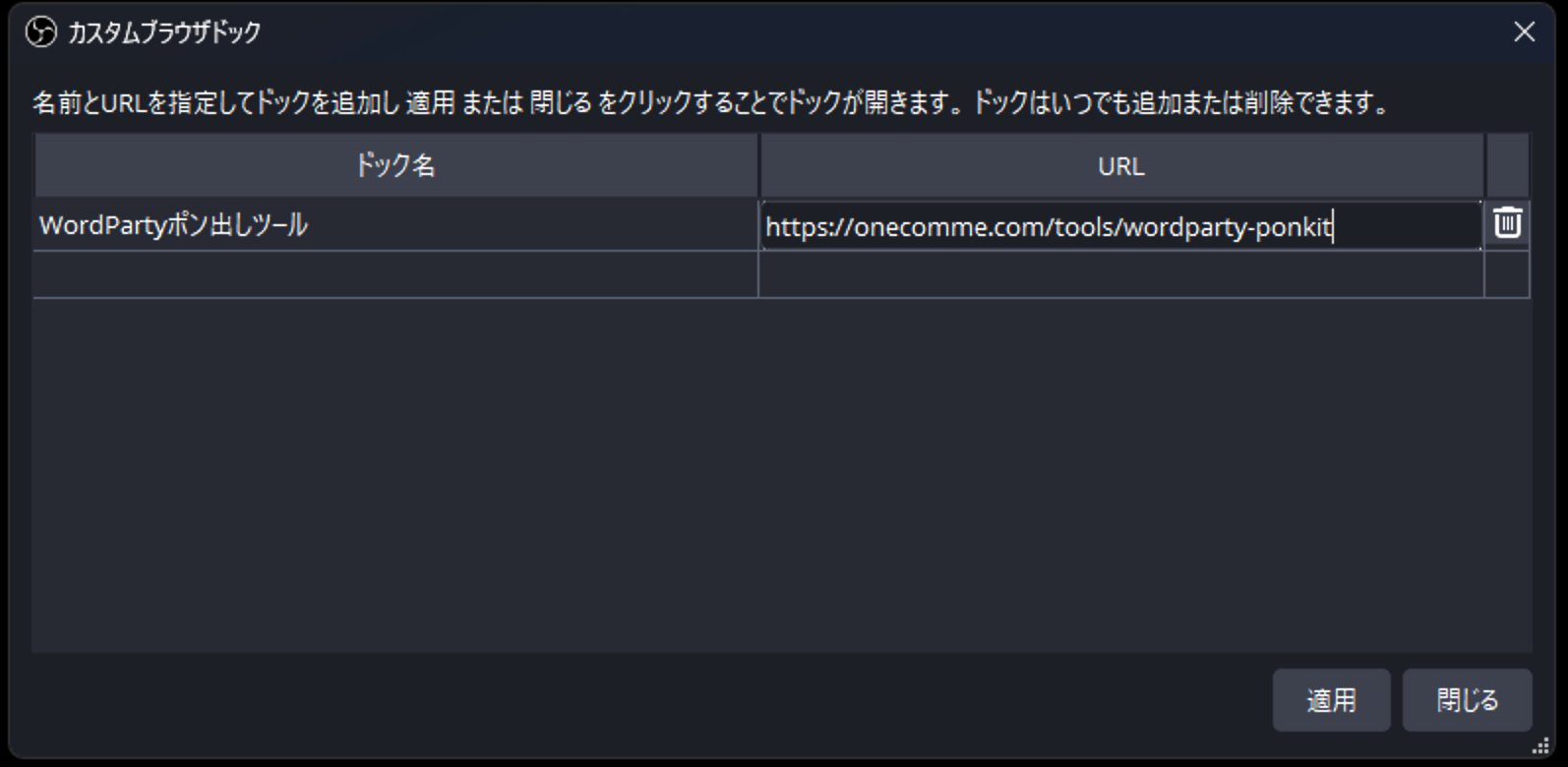 Dock name
Dock name: WordParty PonKit
URL: https://onecomme.com/tools/wordparty-ponkit
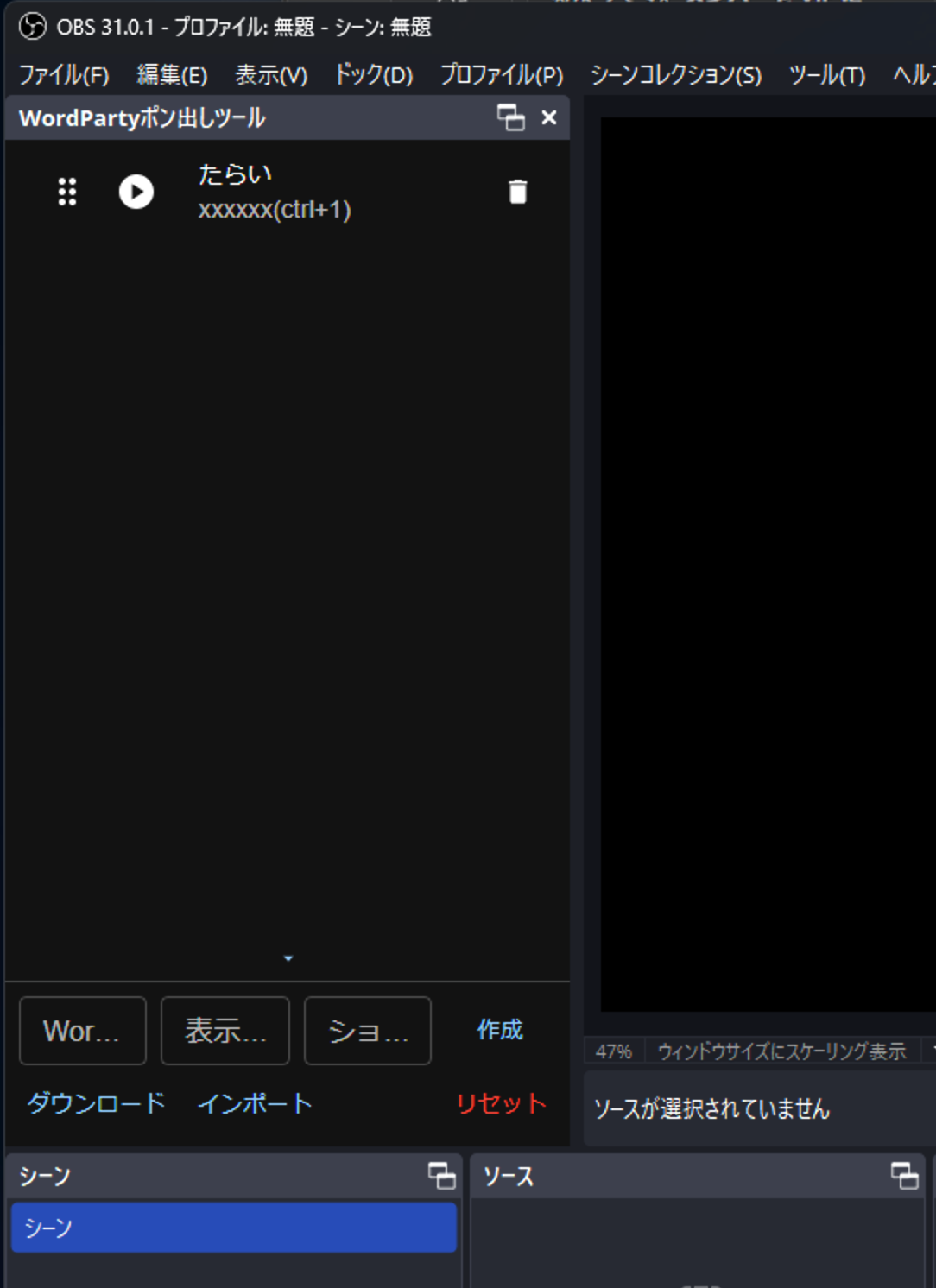
Clicking "Apply" displays the PonKit window in OBS
Drag it to your preferred position
You can now click while watching OBS to trigger WordParty effects
 WashtubHelpDownloadSceneSceneImportResetSource
TIPS
Settings configured in the browser are not reflected in OBS, so after using "Download" to export your settings, use "Import" in OBS to restore them
If you have a StreamDeck
You can download it if you support us via FANBOX at the Pro Plan tier or above
With a StreamDeck, you can perform various operations besides triggering WordParty effects, so if you'd like more control, check out the page below
StreamDeck plugin