
Getting comments
Let's get comments from a streaming platform
Comment retrieval flow
Paste the stream URL
Launch the OneComme app and paste the URL of a currently live stream, or a channel URL, user page, community URL, etc. into the "Stream URL" column — see the supported URLs
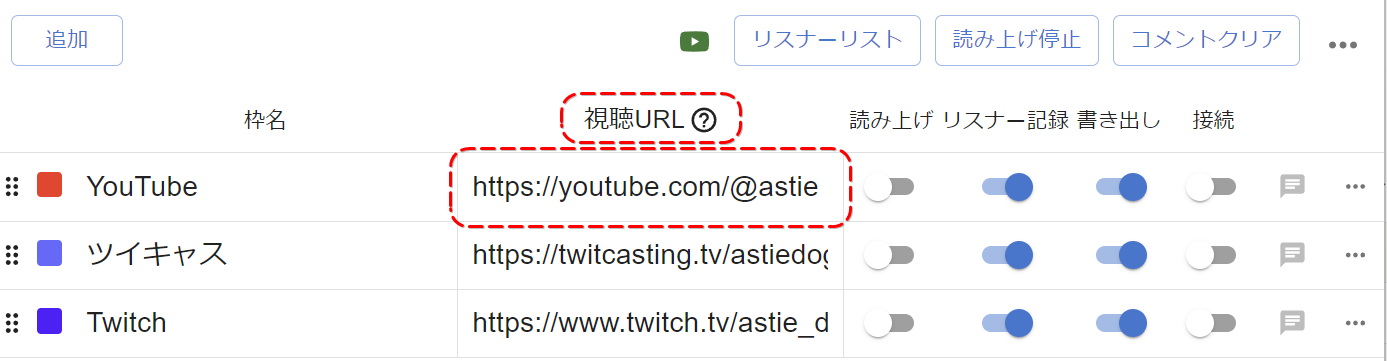 AddTwitCastingStream NameCommentersStop speechClear commentsStream URLSpeechPersistExportConnect
TIPS
On platforms like YouTube or NicoNicoLive, where the URL changes for each stream, entering a channel URL or user page URL will automatically connect to the closest active stream.
For supported URLs, check "Supported URLs".
※ You can paste and get comments from anyone's stream URL, not just your own
※ To get comments from a members-only stream, check "How to get comments from members-only streams"
Connect to the pasted URL
Turn both "Output" and "Connect" ON
※ If you want to show the retrieved comments on your stream, enabling "Output" is required
For details, see Show comments in OBS
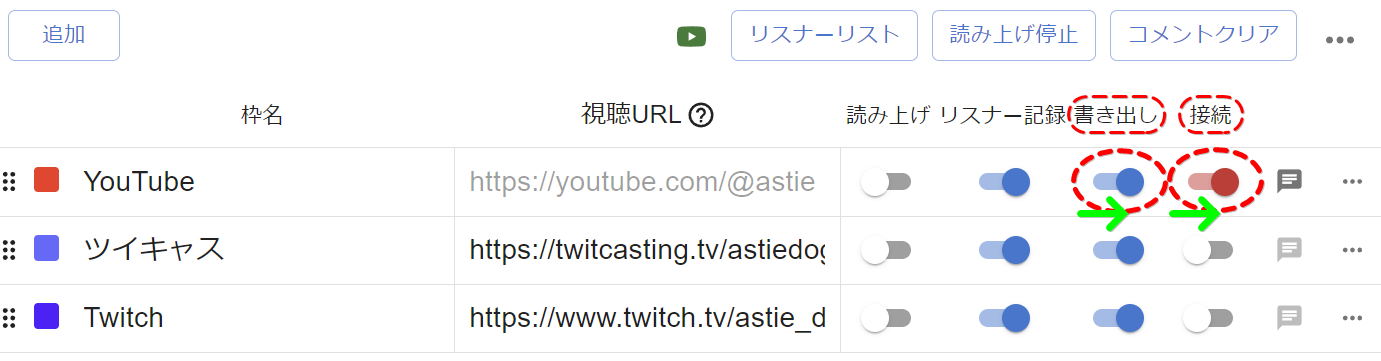 AddTwitCastingStream NameCommentersStream URLStop speechClear commentsSpeech/Persist (ExportConnect
Wait for comments to come in on the stream URL
When comments are posted on the live stream, they'll appear at the bottom of OneComme
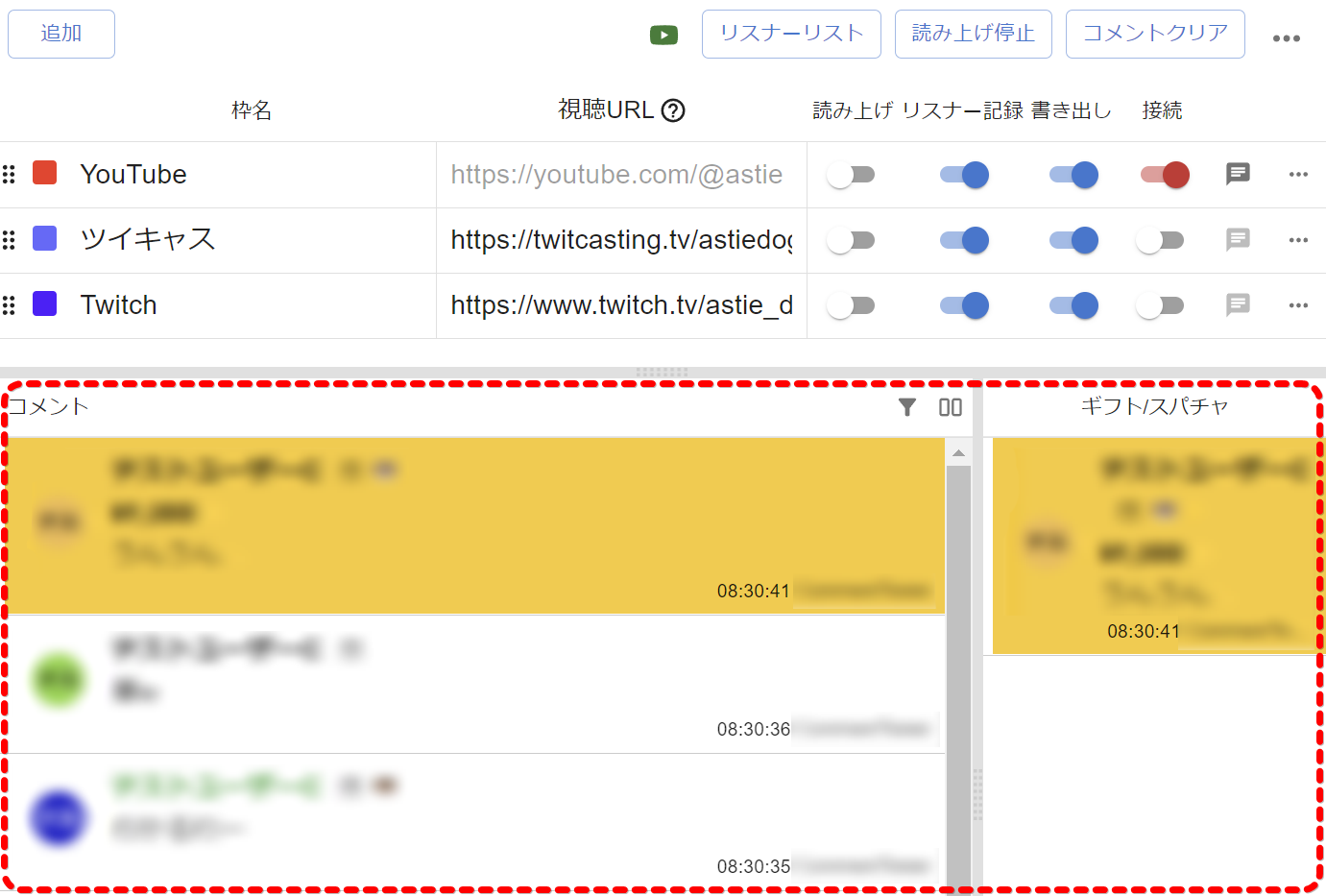 AddTwitCastingCommentsStream NameCommentersStop speechClear commentsStream URLSpeechPersistExportConnectGift/SuperChat
Related information
Supported URL formats for each streaming platform
→ "Supported URLs"
Getting comments from members-only streams
→ "How to get comments from members-only streams"