
Speech settings
OneComme's Speech settings screen
App screen
Open the menu in the top right > Settings > the "Speech" tab
Choosing a Text-To-Speech Engine
OneComme reads comments aloud using one Text-To-Speech Engine at a time
- The "Built-In Voice Engine" and "SAPI5" (Windows only) require no connection, and can be selected directly from this Speech settings screen
- For VOICEVOX, COEIROINK, AivisSpeech, BouyomiChan, and YUKARINETTE CONNECTOR NEO, connect them first under "Integrations". Only engines that have been connected will appear as options on this screen
- The engine selected here becomes the "Default Text-To-Speech Engine", used for all streams. To use a different engine for a specific stream, change it individually in "Individual options"
* If the selected engine can't be connected to, a "Cannot Read Comments" notice appears at the top of the screen
Field-by-field explanation of the app screen
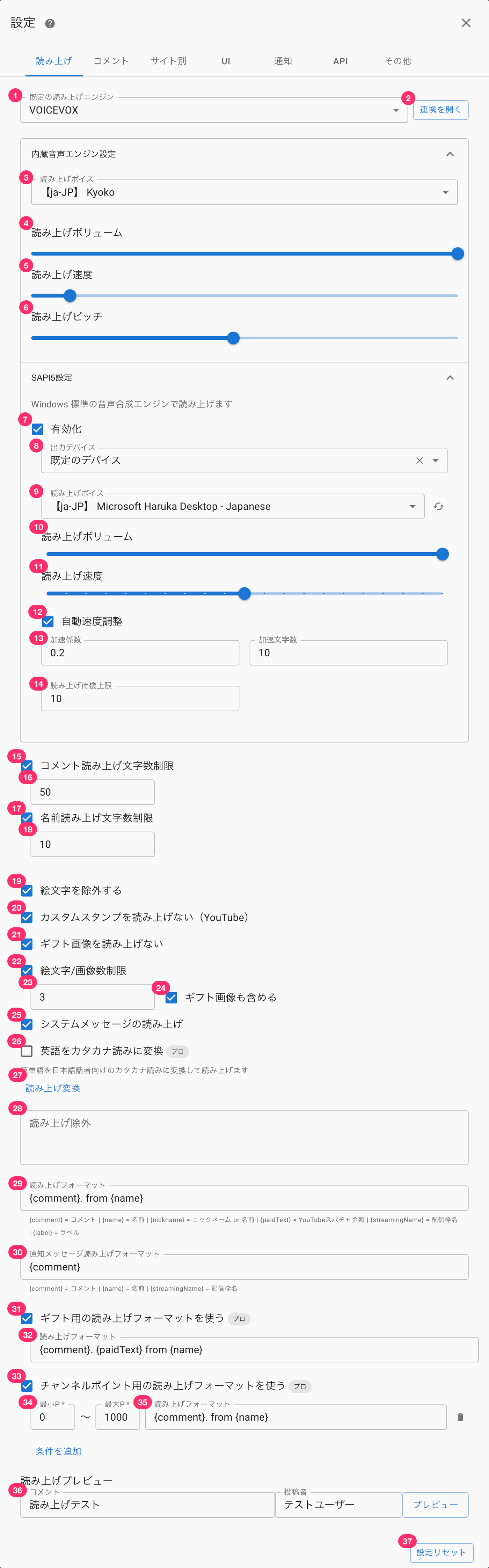 SettingsSpeechCommentsWebsite specificNotificationOthersDefault Text-To-Speech EngineBuilt-In Voice Engine SettingsSpeech VoiceSpeech VolumeSpeech SpeedSpeech Voice PitchSapi5 SettingsIt Will Be Read Aloud Using The Standard Windows Text-To-Speech Engine.Output DeviceDefault DeviceSpeech VolumeSpeech SpeedAccelerated Character CountMaximum Queued ItemsComment speech character limitUsername character speech limitExclude EmojiDon't read custom stamps (YouTube)Don't read giftsIncludes gifts' imageSpeech for system messagesConvert English To Katakana PronunciationPROThis Program Converts English Words Into Katakana Pronunciations Suitable For Japanese Speakers And Reads Them Aloud.Speech ReplacementExclude from speechOpen The CollaborationSyntax for speechSyntax for speechUse Syntax for speech for Channel Points ProMin pointMax pointSyntax for speechAdd conditionsSpeech PreviewCommentsSpeech testUsernameTestUserPreviewReset Settings
Default Text-To-Speech Engine
| ① Default Text-To-Speech Engine | Choose the engine used for speech Connected integration engines and the connection-free "Built-In Voice Engine" / "SAPI5" (Windows only) appear as options Selecting "+ Add Text-To-Speech Engine Integration" at the end of the list opens the integration settings screen |
| ② Open integration | Shown when an integration engine is selected; opens that engine's connection settings |
Built-In Voice Engine Settings
Shown when you open "Built-In Voice Engine Settings"
| ③ Speech Voice | Choose a voice installed on your PC |
| ④ Speech Volume | The volume of the speech voice |
| ⑤ Speech Speed | The speed of speech (the settable maximum differs between Windows and Mac) |
| ⑥ Speech Voice Pitch | The pitch of the speech voice |
SAPI5 settings
Shown only on Windows
SAPI5 is Windows' standard speech synthesis engine
If you have an external SAPI5-compatible voice installed (such as CeVIO AI), you can use that voice for speech
* SAPI5 is a Windows feature rather than an integration (connection to an external app), so it does not appear in the integrations list
| ⑦ Enable SAPI5 | Allows SAPI5 to be used as a Text-To-Speech Engine When enabled, it's added to the "Default Text-To-Speech Engine" options |
| ⑧ Output Device | Choose the device that outputs SAPI5's voice |
| ⑨ Voice | Choose a voice installed on Windows |
| ⑩ Volume | SAPI5's speech volume |
| ⑪ Speed | SAPI5's speech speed |
| ⑫ Automatic Speed Adjustment | Increases speech speed for longer comments |
| ⑬ Acceleration Coefficient / Accelerated Character Count | With Automatic Speed Adjustment, specifies from how many characters speed starts increasing and by how much |
| ⑭ Maximum Queued Items | The maximum number of comments kept waiting to be read aloud |
Speech targets
| ⑮ Comment character limit for speech | Cuts off speech at a specified character count when a comment is long |
| ⑯ (Input field) | Specify the value for the comment character limit for speech here |
| ⑰ Name character limit for speech | Cuts off speech at a specified character count when a name is long |
| ⑱ (Input field) | Specify the value for the name character limit for speech here |
| ⑲ Exclude emojis | Stops emojis from being read aloud |
| ⑳ Don't read custom stamps aloud (YouTube) | Stops YouTube custom stamps from being read aloud |
| ㉑ Don't read gift images aloud | Stops gift image names from being read aloud |
| ㉒ Emoji/image count limit | Limits the number of emojis or images read aloud |
| ㉓ (Input field) | Specify the value for the emoji/image read-aloud limit here |
| ㉔ Include gift images | Sets whether gift images count toward the emoji/image read-aloud limit |
| ㉕ Read system messages aloud | Reads connection, disconnection, and reconnection events aloud |
English speech
| ㉖ Convert English to katakana reading [PRO] | Converts English words into a katakana reading aimed at Japanese speakers before reading them aloud Reduces mispronunciations in comments that mix in English words Shown only when the app's display language is Japanese * Not available on Intel-based Macs (Apple silicon Macs and Windows only) |
Speech exclusion and text conversion (replacement)
| ㉗ Speech conversion | Opens the dictionary settings dialog → Dictionary |
| ㉘ Exclude from speech | Specify usernames (commenter names) that should not be read aloud Using "*" in part of a username excludes it by partial match (e.g. Nightbot-*) Enter one username per line |
Syntax for speech
| ㉙ Syntax for speech | Specify the format used to read comments aloud "{comment}", "{name}", "{paidText}", and "{streamingName}" are replaced with the "comment", "author name", "Super Chat amount", and "stream name" respectively "{nickname}" is replaced with the "nickname" if one is set (if no nickname is set, it's replaced with the "author name") Leaving it empty disables speech "{label}" is replaced with the label assigned to the user |
| ㉚ Notification message syntax for speech | Specify the format used to read notifications and Notice comments aloud Written using the same format as the syntax for speech |
| ㉛ Use a separate syntax for speech for gifts | Lets you use a different speech format when receiving gift comments |
| ㉜ Syntax for speech (for gifts) | Written the same way as ㉙ |
| ㉝ Use a separate syntax for speech for channel points | Changes the speech format only for Twitch Channel Points notifications |
| ㉞ Min. P\* – Max. P\* | Changes speech for values within the specified range |
| ㉟ Syntax for speech (for channel points) | Specify the speech format to change to Written the same way as the regular syntax for speech |
Speech Preview
| ㊱ Speech Preview | Sends a test comment containing an author name and comment content |
Reset Settings
| ㊲ Reset Settings | Resets the Speech settings items to their default values Speech conversion settings are kept |