
Templates
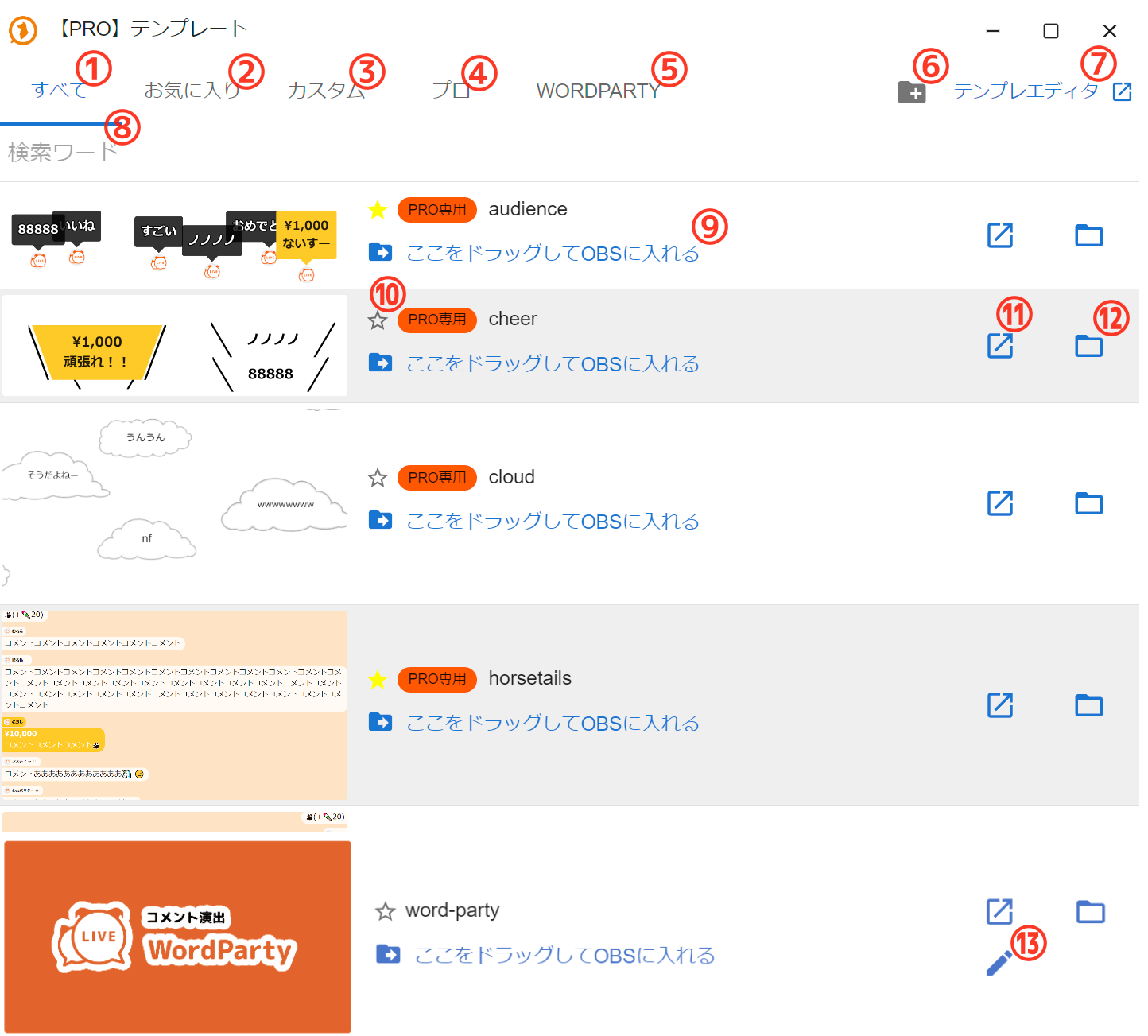
OneComme's template list screen
 [PRO] TemplatesFavoriteCustomizedPROTemplate EditorAllSearch WordThat's rightAmazingNononoNicePRO onlyDrag and Drop this into OBS scenePRO onlyDrag and Drop this into OBS sceneYeah yeahCommendCommentCommentCommentCommentCommentCommentCommendCommentCommentCommentCommentCommentCommentCommendCommendCommentCommentCommentCommentCommentCommendCommentntCommentPRO onlyDrag and Drop this into OBS scenePRO onlyDrag and Drop this into OBS sceneComments
| ① All | Shows all templates |
| ② Favorite | Shows only templates registered as favorites |
| ③ Custom | Shows only templates other than OneComme's built-in templates (the ones included by default) This includes duplicates of built-in templates, self-made templates, and templates obtained from purchases or distributions elsewhere |
| ④ Pro | Shows only PRO-exclusive templates |
| ⑤ WORDPARTY | Shows only WordParty templates |
| ⑥ Folder icon | Adds a template You can add a template compressed as a ZIP file via the file picker You can also add one by dragging and dropping it into this screen |
| ⑦ Template Editor | Opens OneComme's Template Editor web page |
| ⑧ Search for... | Lets you enter a search term When entered, only templates containing the search text are shown (filters the list) |
| ⑨ Drag and Drop this into OBS scene | You can drag and drop this blue text portion into OBS Dropping it adds this template to OBS |
| ⑩ ☆ icon | Registers this template as a favorite Templates registered as favorites appear in the list under the ② Favorite tab |
| ⑪ ↗ icon | Opens this template in a web browser |
| ⑫ 📁 icon | Opens this template's folder |
| ⑬ 🖊 icon (WordParty templates only) | Opens the edit screen for this WordParty template → WordParty Editor |
Adding templates
You can add a template by dragging and dropping the zip file containing it onto the template list
If drag and drop isn't available due to administrator permission issues or similar, you can add it via the file picker using the folder icon mentioned above
Template samples
Here is a list of design samples for how comments are displayed in OBS
➡ You can easily preview how each template moves at the "Template Editor"
Common to Free and PRO
basic
bolt
bolt-right
cool-pop
chat
chat-right
diagonal
diagnal-right
pop-chat
pop-chat-right
retro
slim
neon
ktx-quick-starter
newsticker
word-party
[PRO]-exclusive templates
audience
Comments appear as speech bubbles, as if viewers were speaking from their seats (fade-out type)
cheer
Comments are displayed like cheers or shouts (volatile type)
jugon
Vertically written comments slowly appear and disappear with a horror-like effect (fade-out type)
vertical
Comments are displayed in vertical writing
the-world
Comments flow along an orbit that appears to rotate around the surroundings, with a sense of depth (moving exit type)
cloud
Comments are wrapped in clouds and float upward gently (moving exit type)
horsetails
Nicknamed the "horsetail" template — comments sprout up from the left edge (with timed disappearance)
horsetails-right
Nicknamed the "horsetail" template — comments sprout up from the right edge (with timed disappearance)
scramble
Comment text appears while randomly switching characters
neon-ex
A version of neon that can be further customized in the Template Editor You can turn off the glow, change the layout, and more
cyber-mx
Comments flow from top to bottom with a shuffle effect You can also change it to flow from bottom to top in the Template Editor
toybox
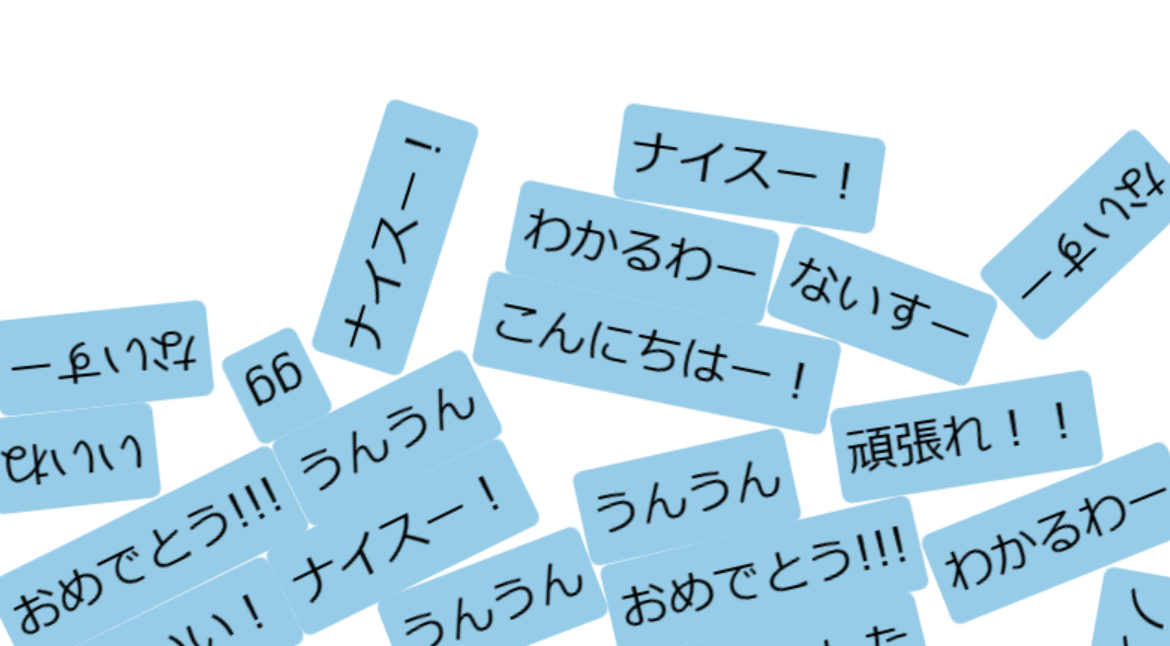
Comments fall from the top like blocks and stack up
Comments are physics-simulated and don't overlap each other
 Yeah yeahNiceHelloYeah yeahI get it
lyric
A template that presents comments as music-video-style kinetic typography
Text style presets include options like a bold, three-dimensional-outlined "sticker" style