
[PRO] Comment translation
Comment translation using the Chrome browser
Translate comments using the AI translation built into the Chrome browser
Translation uses CPU and GPU resources, so check beforehand whether your machine has enough headroom
Caution
The languages you can translate depend on Chrome. Behavior may also vary by version, so use the latest version
Translation settings
From OneComme's top-right menu > Settings > Comments, check "Comment translation"
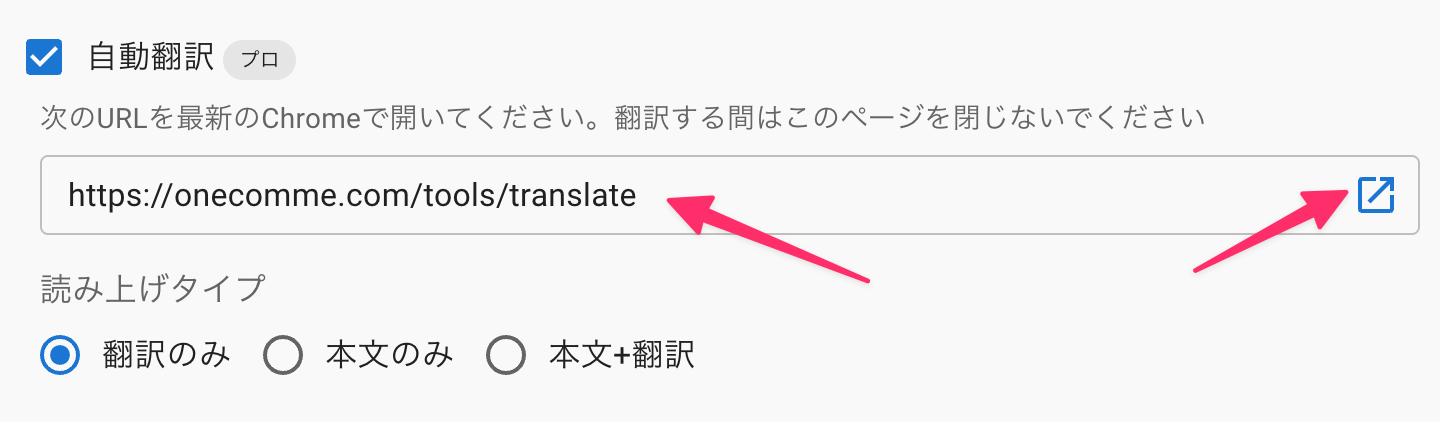 Please Open The Following Url In The Latest Version Of Chrome. Do Not Close This Page While It Is Being Translated.Reading typeTranslated OnlyOriginal Only
Then open the displayed URL in Chrome (the open icon on the right opens it in your default browser instead)
Settings in Chrome
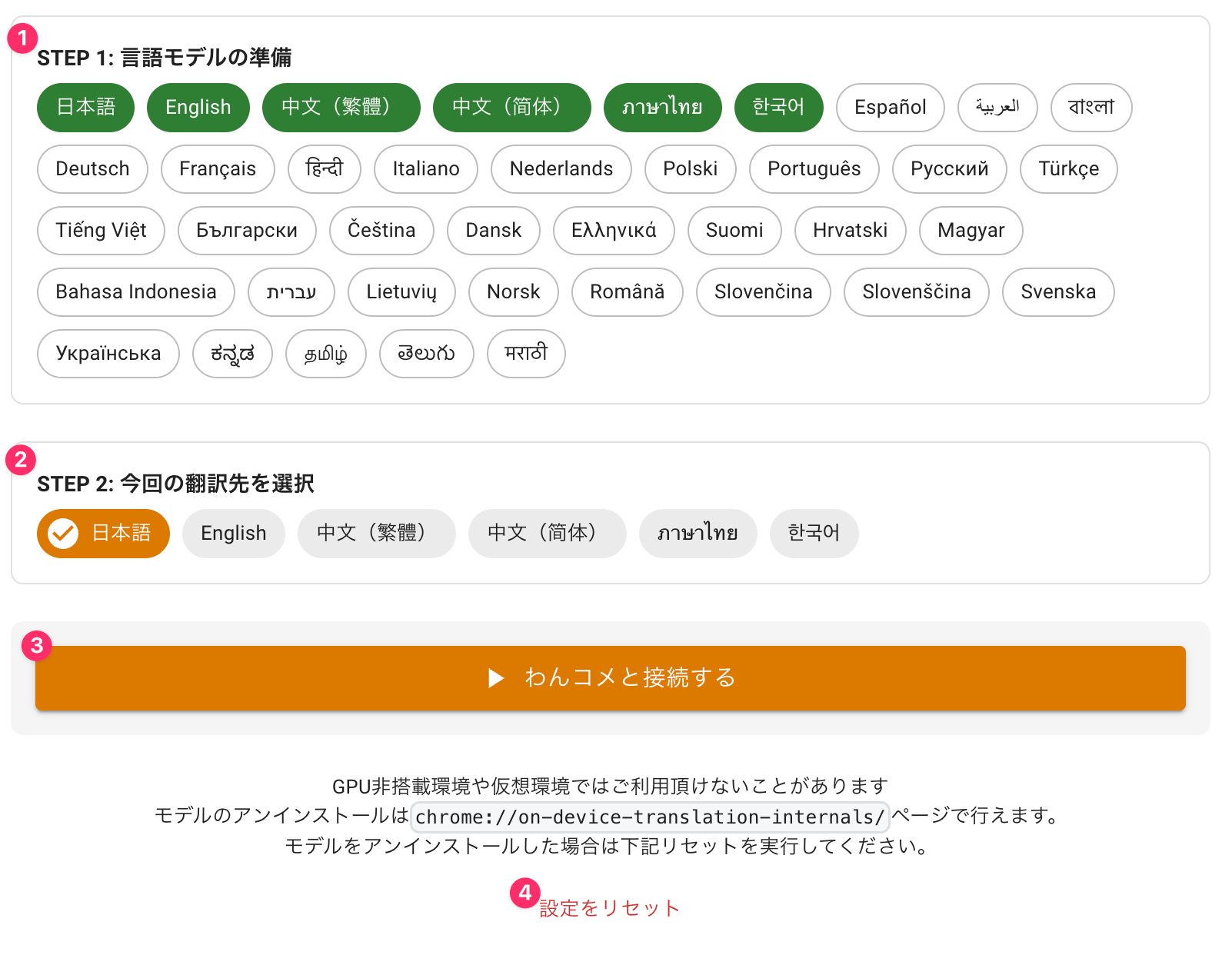 STEP 1: Prepare Language ModelJapaneseSTEP 2: Select Translation TargetJapaneseConnect to OneCommeMay not work without GPU or in virtual environmentsIf you uninstalled the model, run the reset belowReset Settings
In STEP 1, select the language you want to translate and download the translation model
TIPS
The more languages you select, the higher the load, so only select the ones you need
In STEP 2, specify the target language for translation
If you want to translate English comments into Japanese, select "Japanese"
Once configured, click "Connect to OneComme"
If it shows as waiting to translate as in the image below, you're ready to go
 connected: Waiting to translateStop and Reload
Try posting a comment in English or another language using the Dummy Commenter to test it
 TesTestUserhello (Hello
Caution
For translation to work, keep the Chrome browser visible and don't close the page
Also, minimizing the window or leaving it out of view can reduce translation performance
Speech settings
Let's configure how translated comments should be read aloud
Reading type
Translated Only - If a comment was translated, only the translation is read aloud. If it wasn't translated, the original text is read aloud
Original Only - Only the original text is read aloud, even if it was translated
Original + Translated - Both the original text and the translation are read aloud
Adjusting in OBS templates
Translated results are also output as comments
You can change how the translated results are displayed using the reference below
Show only the translated result
.origin {
  display: none;
}
.par {
  display: none;
}
Don't show the translated result
.t {
  display: none;
}