
How to update
This page explains how to update OneComme.
Update notification (in the app)
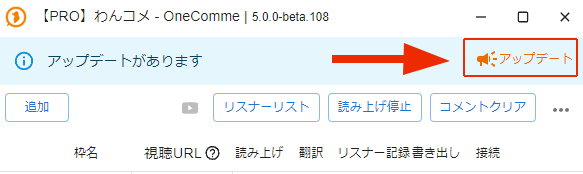
If a light blue notice appears at the top of the app screen as shown below, a new version is available.
(If the app's UI theme is set to dark mode, the notice appears in a dark bluish-black color instead.)
TIPS
Updates can include not only new features but also bug fixes, so if you see this notice, update whenever you have a moment.
 Update(s) availableAddClear commentsStream NameCommentersStop speech
How to update
Click the update notification (the light blue area) at the top of the screen.
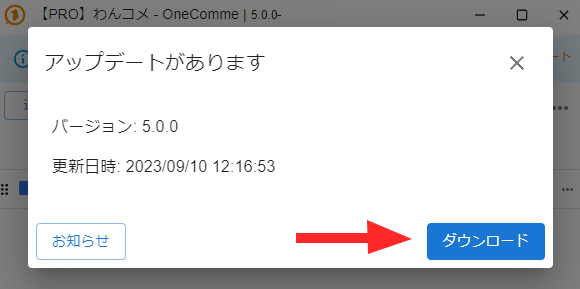
A screen like the one below appears. Check the version number and other details, then click the "Update" button.
 Update(s) availableDownloadVersion: 5.0.0Updated: 2023/09/10 12:16:53Notice
After clicking "Update," the download starts automatically on the spot — no need to choose a save location. Progress (as a percentage) is shown while downloading.
Once the download finishes, the app moves on to installation automatically, without any confirmation or extra steps. During this, you may see "Preparing to install. The app will restart shortly…" displayed for a while (roughly 30–60 seconds).
TIPS
This is normal behavior — the app is performing a backup as part of the shutdown process.
Even if the "Preparing…" message appears to be stuck with no response, do not force-quit the app.
- Once preparation is complete, the app restarts automatically and launches the latest version of OneComme.
If automatic update fails
Check your internet connection
Updates cannot be performed offline.
Try running the update again once your network connection is stable.
Check your security software settings
Some security software may block the installation.
Temporarily disable your security software, or add OneComme to its exclusion list, then try the update again.
If it still fails, download the latest installer from the official website and reinstall over the existing version.
Your settings and templates are preserved even after an overwrite installation.