
How to register PRO
This explains how to register and unregister a PRO license key.
Note
To switch to PRO, either authenticate with FANBOX in the app (no key entry required) or register a license key
If you haven't done either yet, check "How to get a license"
How to register and unregister a license key
Open "License"
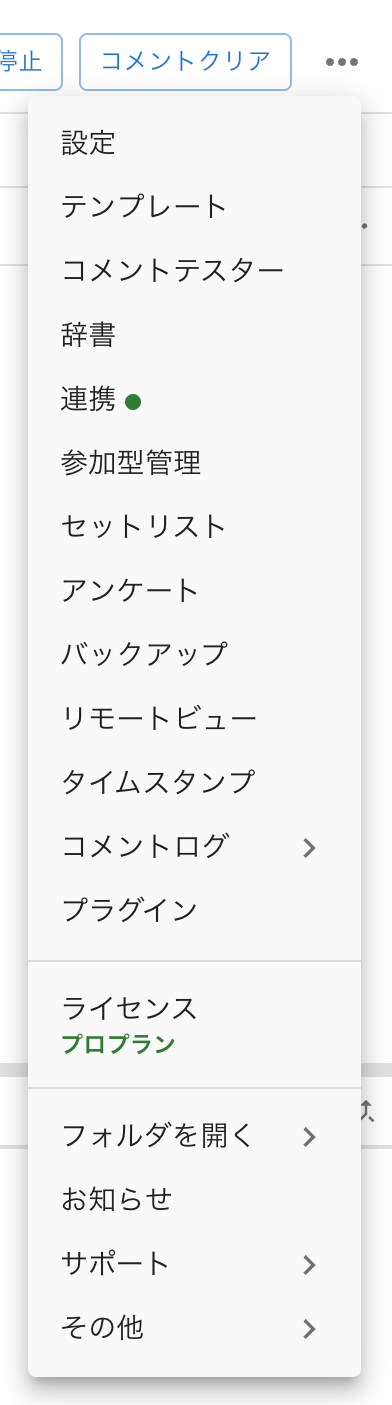
From the "…" menu in the top right of OneComme, select "License"
The plan you're currently on is shown in small text below the menu item
 StopClear commentsSettingsTemplatesDummy CommenterDictionaryIntegrationViewer-participating SystemSetlistPollBackupRemote ViewTimestampsComment LogPluginsLicensePro PlanOpen folderNoticeSupportOthers
 LicenseOneComme PROLicense KeyPlanOneComme can be used commercially as-is by individuals or businessesFreeBasic features and standard templatesFor personal, corporate, commercial streamingstreaming useBasic templates and custom-izationUp to 2 connections per siteLightquest submission, an extensionplan of the Free versionAll Free version featuresPROCurrently In UsePRO-only templates and handyfeatures, expanded limits, etc.Strengthen your stream operationsTemplatesRemote View, PollfeatureComment analysis, Setlistlimit removedSpeech, Sound Effects settingitems addedWordParty effect patterns andStreamDeck plugin usageUp to 4 connections per siteLearn more about PROSubmit A Feature Request
Note
The license key field that used to be under "Settings > Other" has been removed. Registering and checking your license key is now handled entirely in this "License" dialog
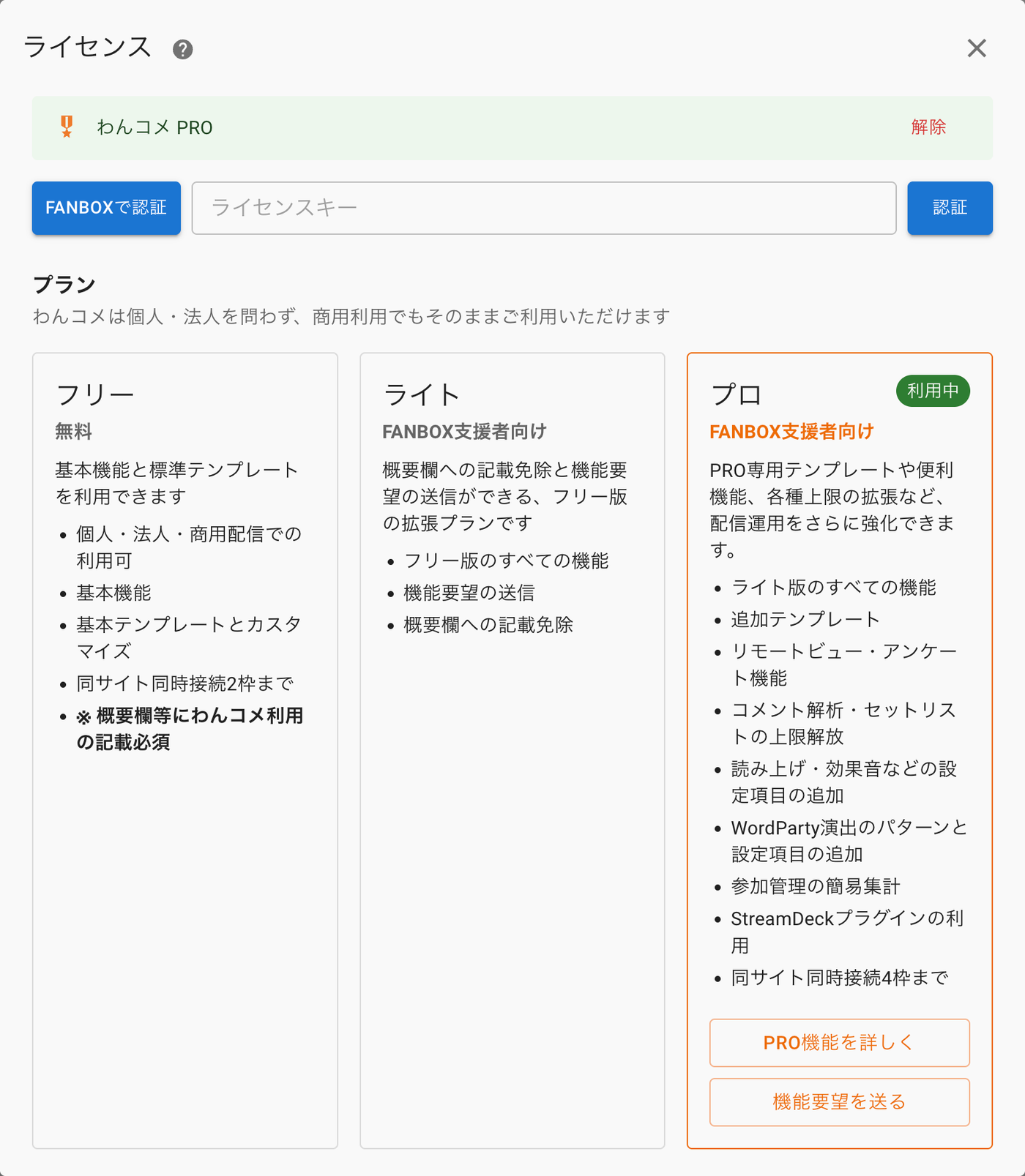
The "License" dialog brings together FANBOX authentication, license key entry, and plan comparison in a single screen
- Authentication with a FANBOX account (recommended, no key entry required)
- Entering a license key the traditional way
- Comparing the Free, Light, and Pro plans
All of these can be done from within this dialog
Entering a license key and authenticating (or unregistering)
Enter the key issued for your PRO license into the license key field in the "License" dialog and click "Authenticate"
To unregister, click "Unregister" next to the license display at the top of the dialog
 OneComme PROLicense Key
Confirming authentication is complete
Once authentication succeeds, [PRO] appears next to the app title, and the plan shown below "License" in the top-right menu changes to "Pro Plan"
This unlocks all of the PRO features for use
Note: If you unregister your license, or if your license key has expired, the [PRO] label disappears from the app title, and the plan shown below reverts to "Free Plan"
 AddCommentersStop speech
Related information - Introduction to PRO features
→ "What is PRO"